 fanlusky
43555460db
The floating toolbar and the emoji panel hardcoded "Segoe Fluent Icons",
which ships with Windows 11 only. DirectWrite substitutes a font silently
instead of failing, so on Windows 10 every private-use codepoint the toolbar
draws (U+E982, U+F110, U+F138, ...) rendered as a blank box: the buttons
still worked but no longer showed any state.

Resolve the font per codepoint rather than per family, because "Segoe MDL2
Assets" is a subset of Segoe Fluent Icons and swapping the family alone would
still draw tofu wherever a glyph is missing:
- add msimeui::ResolveIconGlyph(), which probes the installed icon fonts with
  IDWriteFont::HasCharacter() and returns the first family that really carries
  the glyph, or no family at all;
- give every toolbar and tab icon a text label to fall back on (中/英, 半/全,
  简/繁, ...) when neither font has the glyph;
- drop the unused ToolbarIconButton::SetGlyph/SetLabel, which would bypass the
  resolved family.

Add unit tests for the resolver, covering the missing-glyph path that cannot
be reached on a host that has Segoe Fluent Icons installed.
Metasequoia IME Server(水杉输入法 Server 端)
This is the server end of MSIME-Windows.
How to build
Prerequisites
- Visual Studio 2026
- CMake
- vcpkg
- Python3.10+
- Boost
- Node.js and pnpm 10 (settings page build)
Make sure vcpkg and Boost are installed by Scoop.
Build steps(For Dev)
Clone the product and provision the reviewed dictionary release from its root:
git clone --recursive https://github.com/metasequoiaime/MSIME-Windows.git
cd MSIME-Windows
python scripts/product_lock.py fetch-dictionaries --staging-root .
if ($LASTEXITCODE -ne 0) { throw 'Dictionary verification failed' }
$devLocalData = Join-Path $PWD 'build/dev-local'
$devData = Join-Path $devLocalData 'metasequoiaime'
New-Item -ItemType Directory -Force $devData | Out-Null
Copy-Item MetasequoiaImeDict/out/* $devData -Force
Copy-Item vendor/MetasequoiaImeEngine/helpcode/helpcodes $devData -Recurse -Force
Copy-Item server/assets/tables/* $devData -Force
Copy-Item server/assets/config/config.toml $devData -Force
Push-Location ui-html/webview2/settings/ime-settings
try {
    pnpm install --frozen-lockfile
    if ($LASTEXITCODE -ne 0) { throw 'Settings dependencies failed' }
    pnpm build
    if ($LASTEXITCODE -ne 0) { throw 'Settings page build failed' }
} finally { Pop-Location }
$devWebview = Join-Path $devData 'html/webview2'
New-Item -ItemType Directory -Force $devWebview | Out-Null
foreach ($part in @('shared', 'candwnd', 'ftb', 'menu')) {
    Copy-Item "ui-html/webview2/$part" $devWebview -Recurse -Force
}
$devSettings = Join-Path $devWebview 'settings/ime-settings'
New-Item -ItemType Directory -Force $devSettings | Out-Null
Copy-Item ui-html/webview2/settings/ime-settings/dist $devSettings -Recurse -Force
python server/scripts/prepare_env.py
if ($LASTEXITCODE -ne 0) { throw 'Server environment setup failed' }
$env:LOCALAPPDATA = $devLocalData
$env:METASEQUOIA_IME_DATA_DIR = $devData
cd server
Use a dedicated PowerShell terminal. These steps stage the same locked data as CI
and the current product pages in a separate development directory. Both
LOCALAPPDATA (Windows config/pages) and METASEQUOIA_IME_DATA_DIR (Engine data)
are set for that terminal; setting only the latter would still use installed
Windows configuration and pages. Close the terminal after development.
Dictionary source changes belong in Engine's dictionary/; use its root build_profile.py
to build data instead of calling internal stages in the archived Dict repository.
Then, build and run,
.\scripts\lcompile.ps1
.\scripts\lrun.ps1
If you want to build and run in one step, run the following command,
.\scripts\llaunch.ps1
Watchdog
MetasequoiaImeWatchdog.exe is built next to the server. Starting the server directly also starts the watchdog,
which monitors the server from the same directory and restarts it after an unexpected exit. Repeated early crashes use
an exponential restart delay (up to 30 seconds) to avoid a restart storm.
The developer terminate shortcut stops both processes. The restart shortcut asks the watchdog to start a fresh server after the current process exits.
English prefix candidates
Place english.db next to msime.db in %LOCALAPPDATA%\metasequoiaime. Set
general.cn_en_mixed_input = true in config.toml to enable asynchronous English prefix candidates for Quanpin and
Shuangpin.
Developer Shortcuts
The server process includes a few built-in global shortcuts that are useful during development:
Ctrl + Shift + Alt + T- terminate
MetasequoiaImeServerimmediately
- terminate
Ctrl + Shift + Alt + R- restart
MetasequoiaImeServer
- restart
Ctrl + Shift + Alt + C- clear IME engine cache
Ctrl + Shift + Alt + 1toCtrl + Shift + Alt + 8- delete candidate
1to8from the current candidate window - this only works while the candidate window is visible
- delete candidate
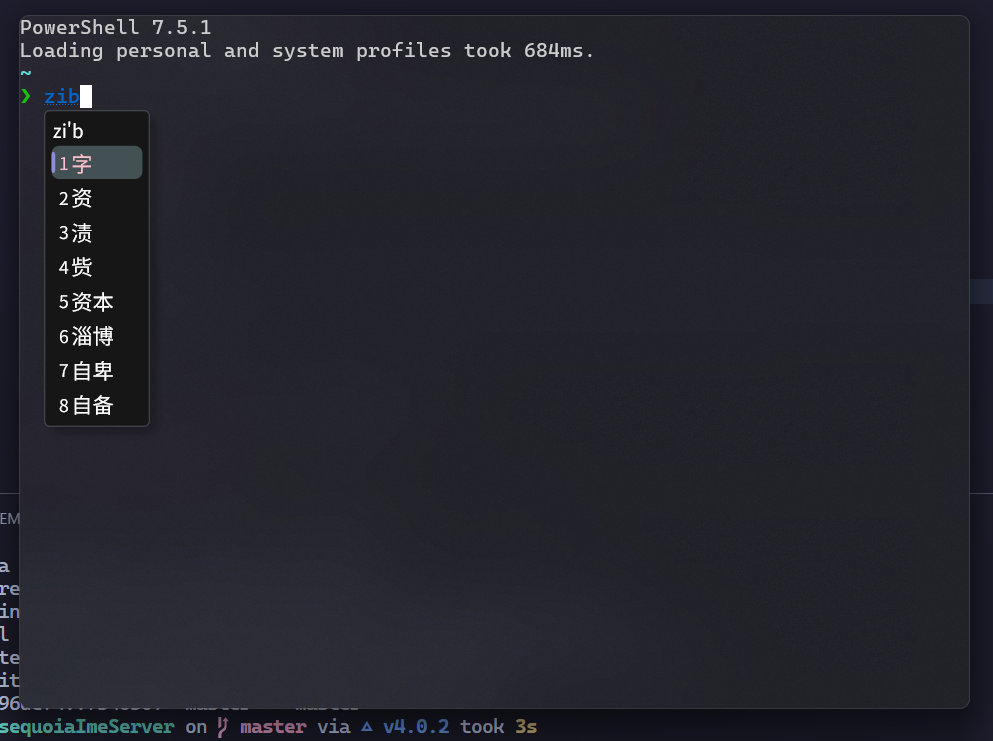
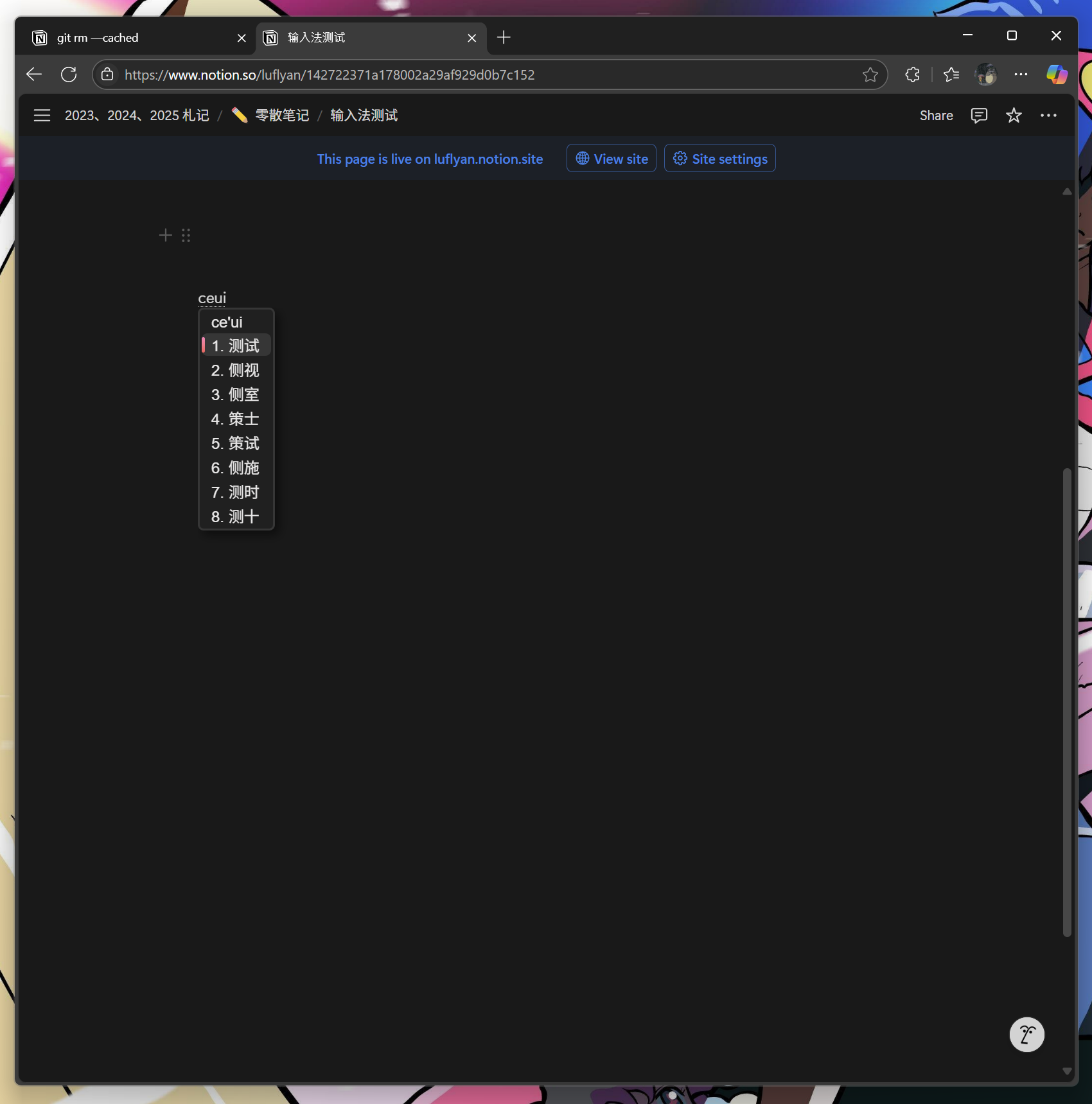
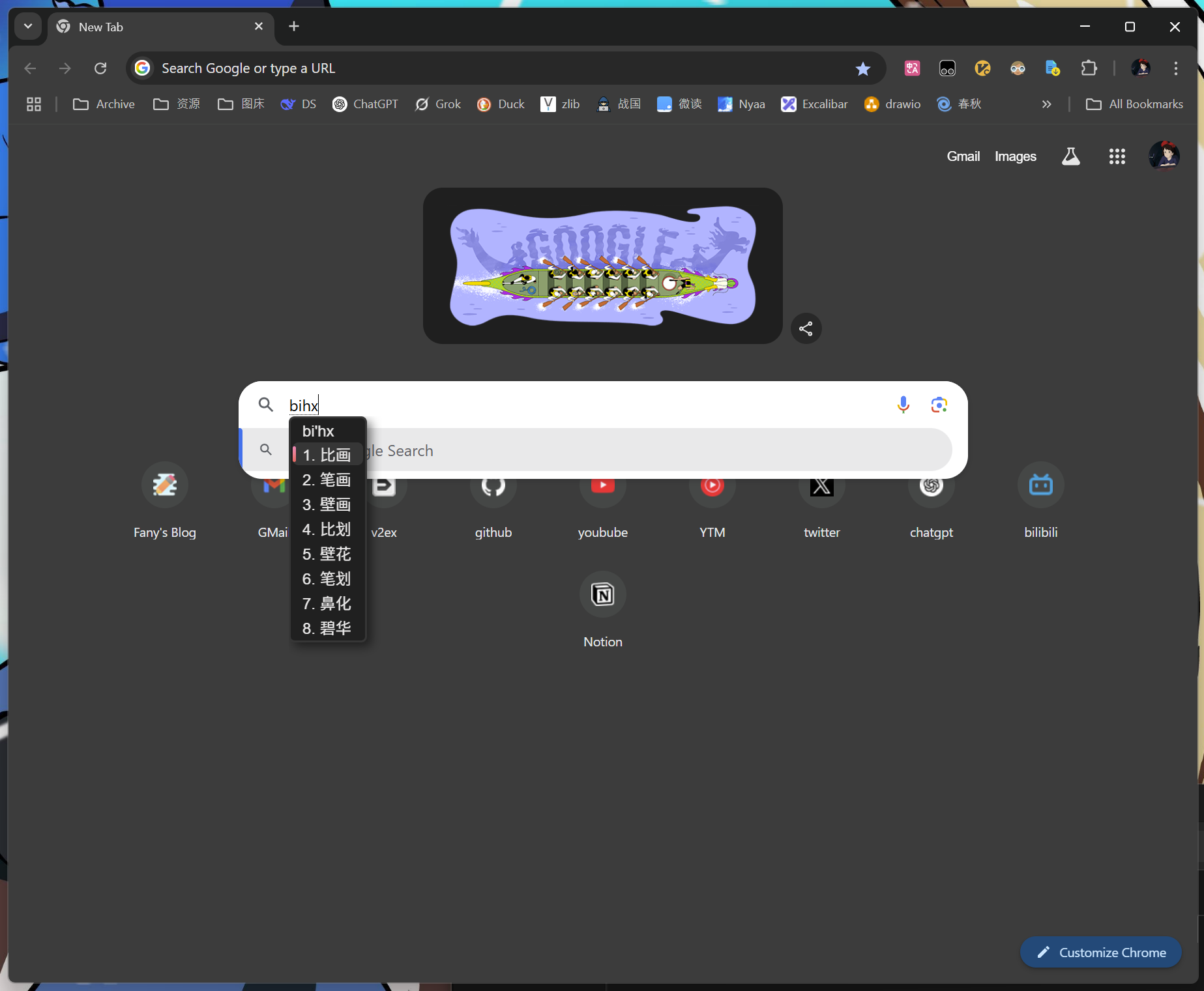
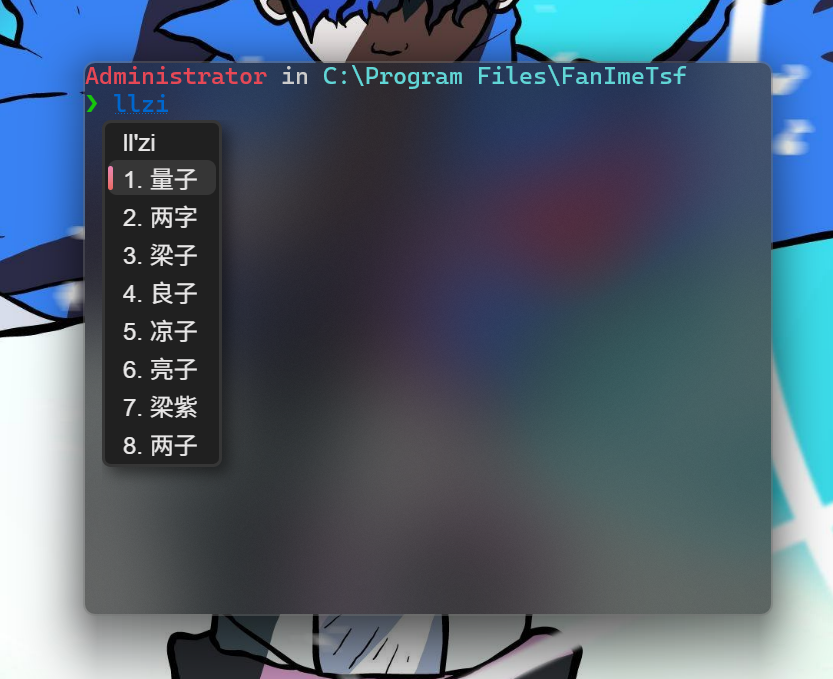
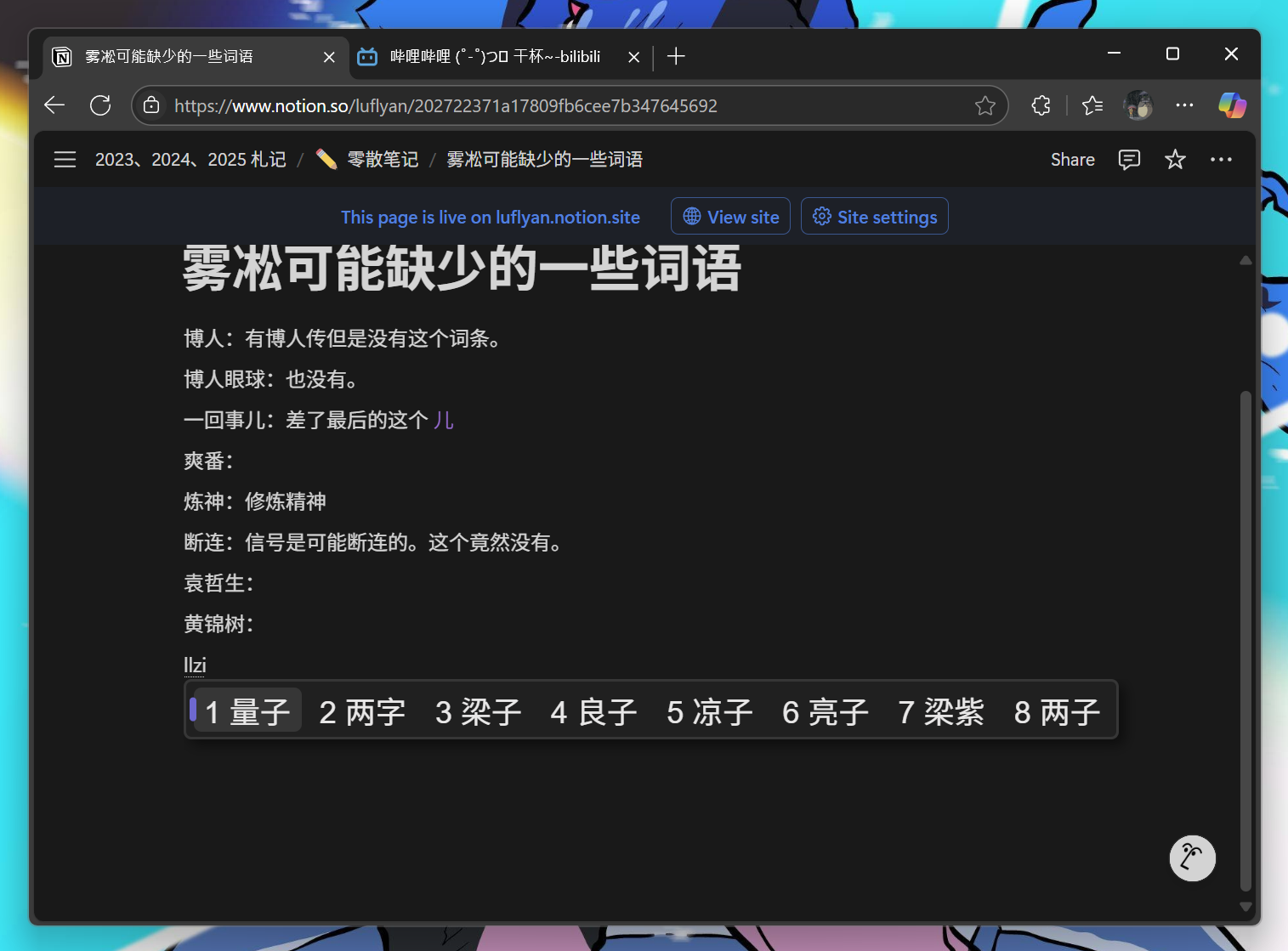
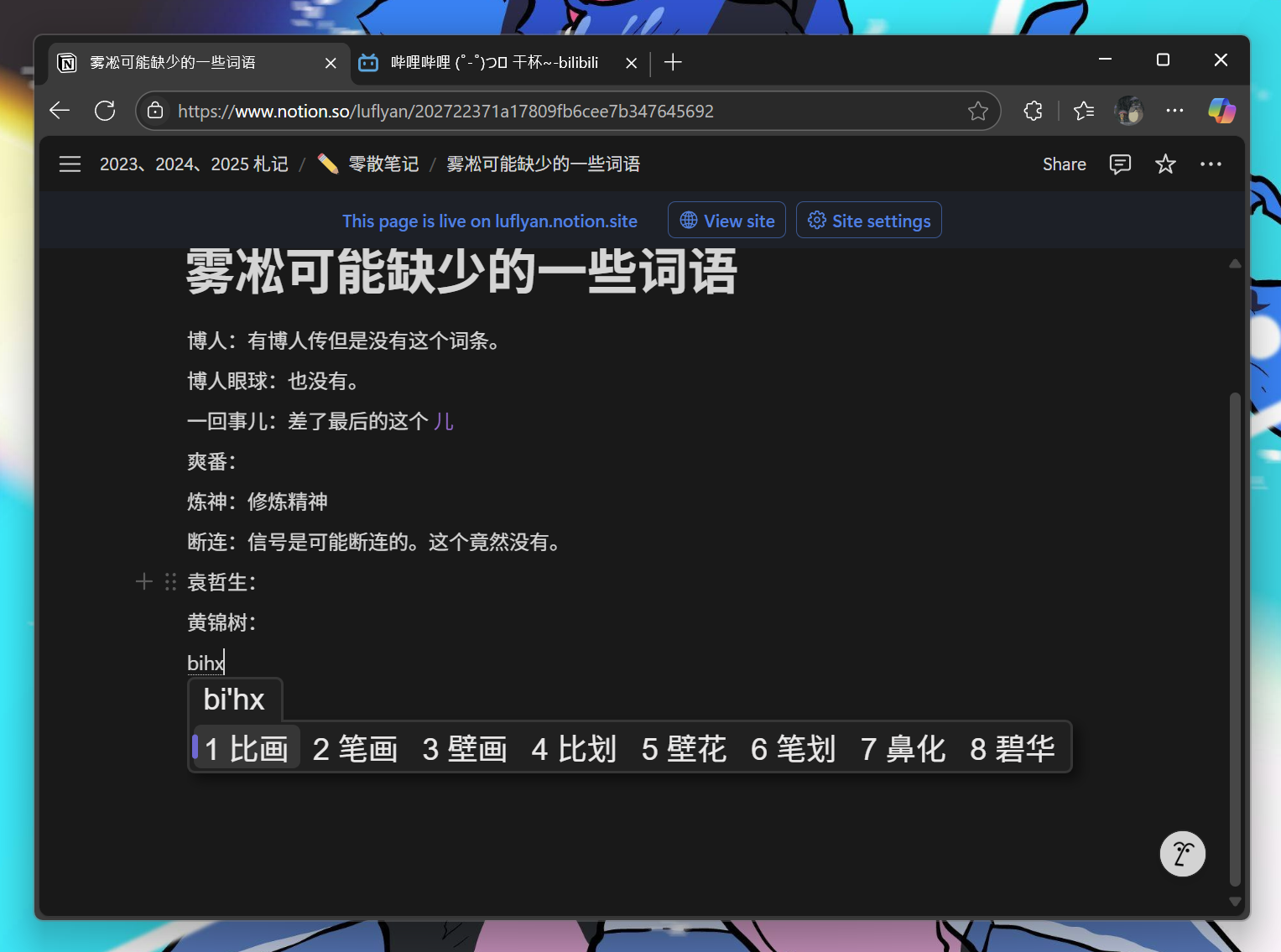
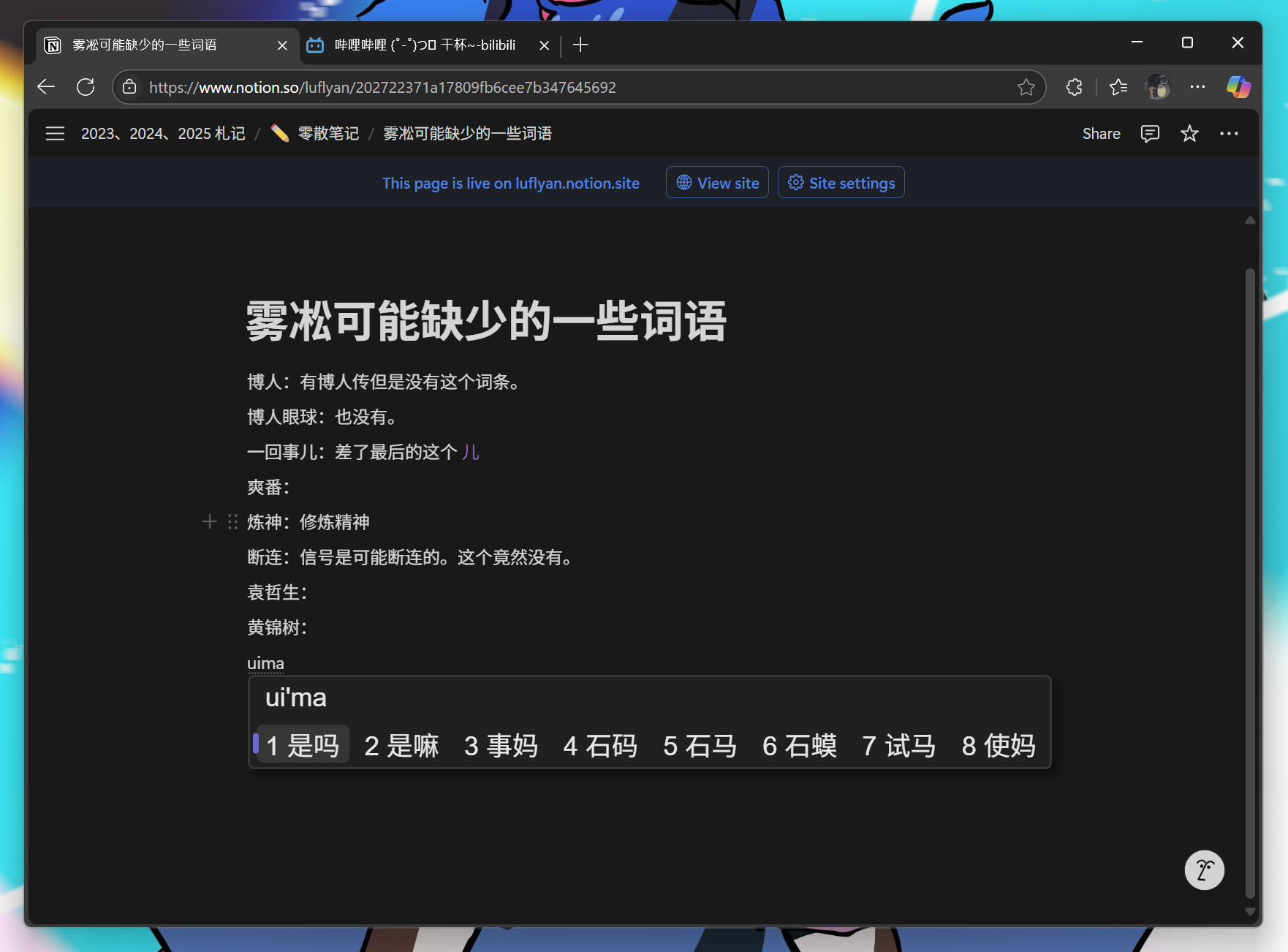
Screenshots
Shared voice providers
The server links Engine VoiceCapture and Voice. WAV encoding and batch transcription/polish codecs come from the public library; Windows keeps provider configuration, SiliconFlow padding/retry behavior and Doubao streaming. Batch uploads are bounded to 20 MiB and responses to 1 MiB. Failed or empty polish responses retain the original transcript.
本地 Release 构建脚本可通过 -ManifestTool <mt.exe 路径> 使用其他 Windows SDK;未指定时沿用现有 SDK 路径。配置、编译或 manifest 嵌入失败都会中止,避免安装器收集旧产物。