 bowenliang123
49f1439dae
- vitest is the runner (matches the official harness); the two bare-node
  scripts and the manual repro become 13 spec files under tests/
- the 1637-line client.test.mjs splits into focused modules (chart /
  browser / linkage / composition-link / tool-chip-bridge /
  browser-autoload / images / modal / resilience), each booting a fresh
  view bed from tests/helpers/viewBed.mjs — the stateful fake-React
  harness, fake ctx, fixtures, and tree walkers now live in one place
- tests/hmr-safety.client.spec.mjs (jsdom lane, @vitest-environment):
  fiber dispose removes every registration — locale dicts, slot rows,
  trigger source, provide contribution, and the plugin-owned style tag
- host spec gains the same dispose-removes-registrations pin for the two
  session-projection units
- the real-React jsdom mount (was npm run repro, broken since the tsdown
  switch by its own string surgery) now runs the bundle verbatim through
  __ModuleLoader__ and is part of the suite; fixed two latent harness
  bugs along the way: the slot-register capture was overwritten by the
  later overlay registration, and the granularity query needed scoping
  to the trend row (the events card reuses the pill-button classes)
- bundle evaluation in all specs runs the artifact verbatim via the
  boot handoff — no string surgery, decoupled from bundler layout
- scripts.test is now typecheck + vitest run; scripts.repro is gone
dsh-context


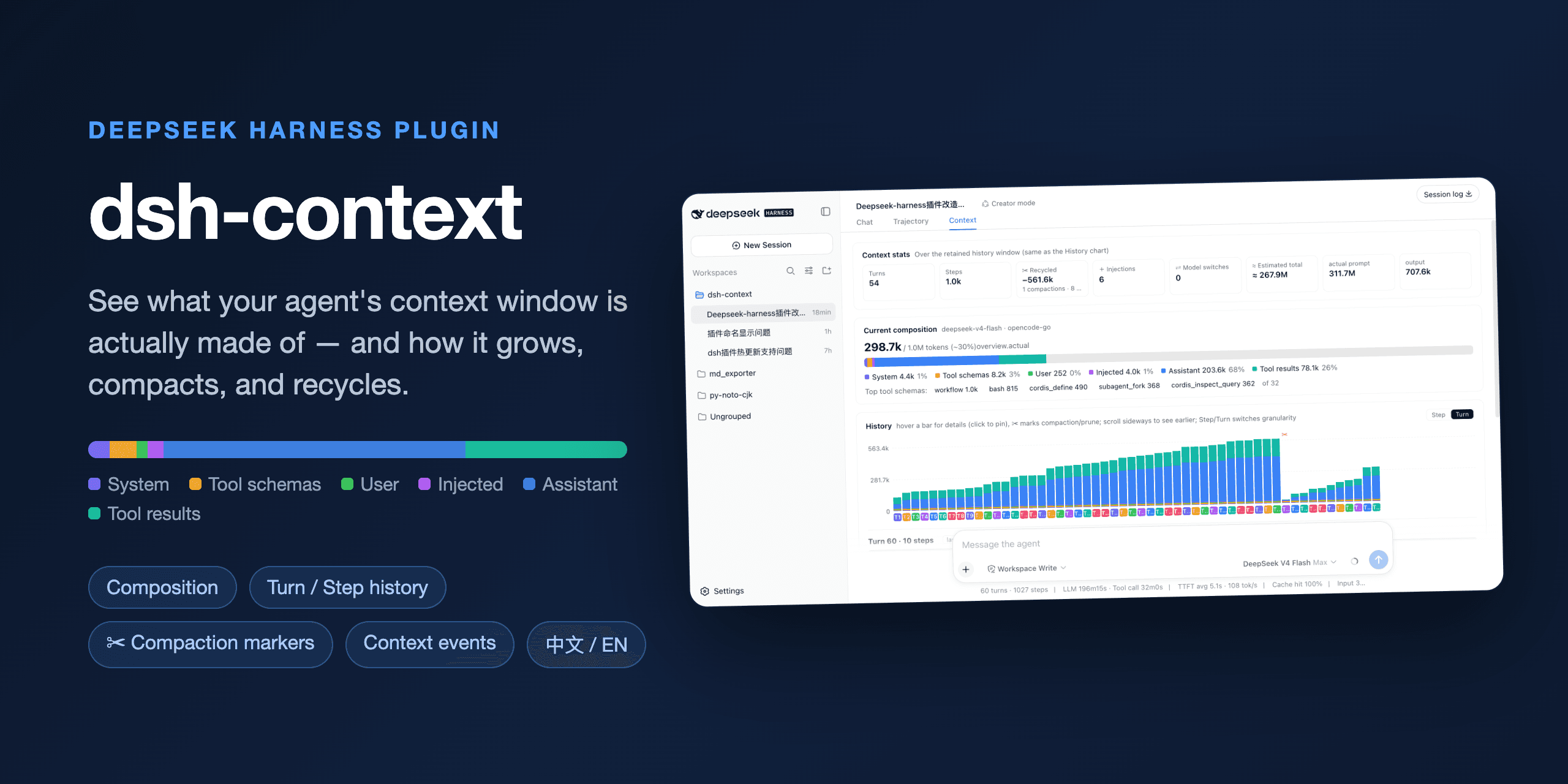
The best DeepSeek Harness plugin for Agent's context insights and management.
dsh-context provides full context lifecycle management features.
- Context tab — an UI context dashboard for DeepSeek Harness’s context stats, composition, history, events, and messages.
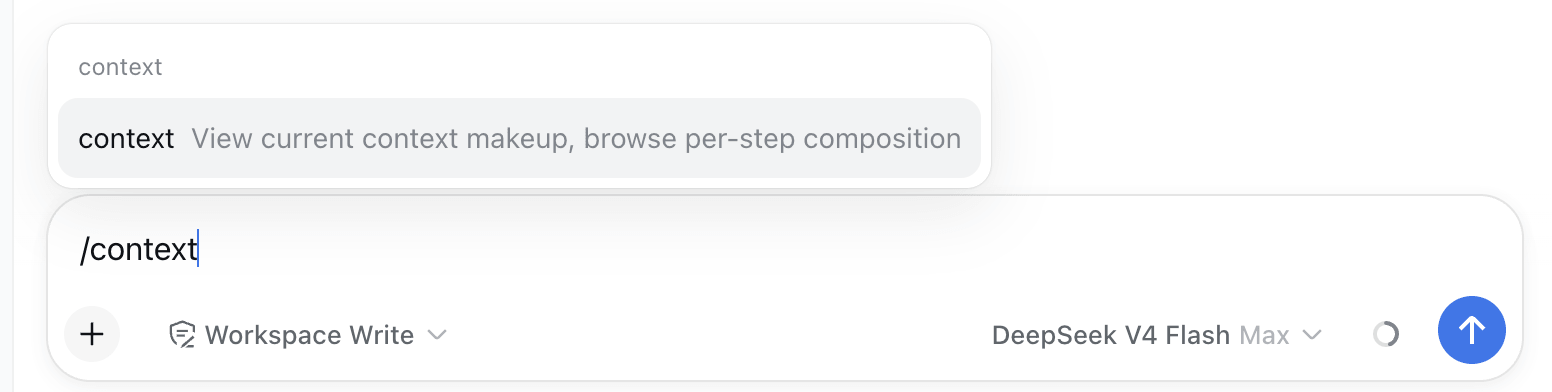
/contextcommand — the slash command shows the context model for current context composition and recent context evolution.
Install / Update
To Install from any DeepSeek Harness installation:
dsh plugin --profile web add dsh-context
Or to update the dsh-context plugin:
dsh plugin --profile web update dsh-context@latest
Then start the web UI with dsh web. No build step, no restart.
Use it
Context tab
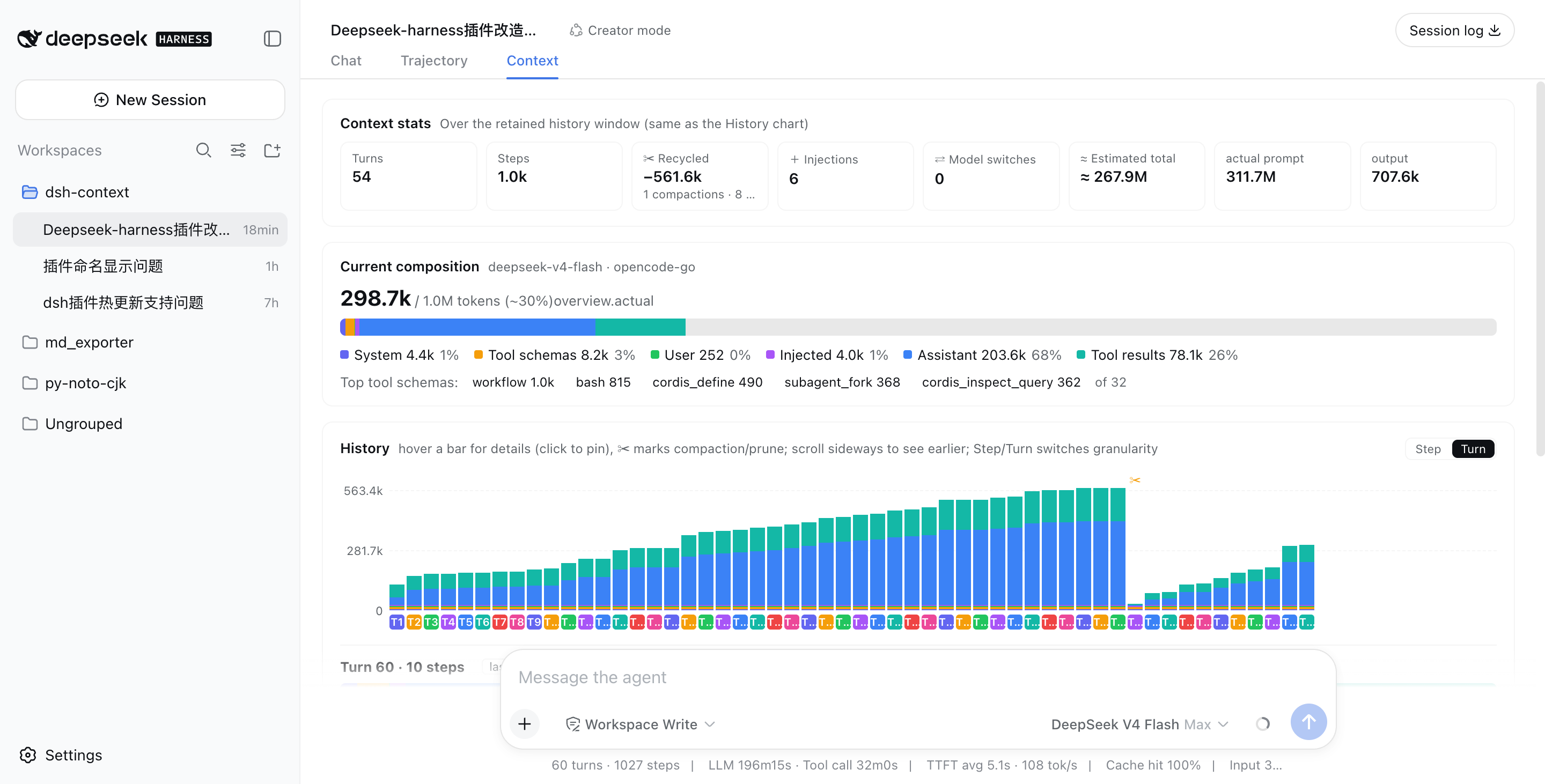
Open any session and click the Context / 上下文 tab:
⌨️ /context command — In-session Context Insight modal
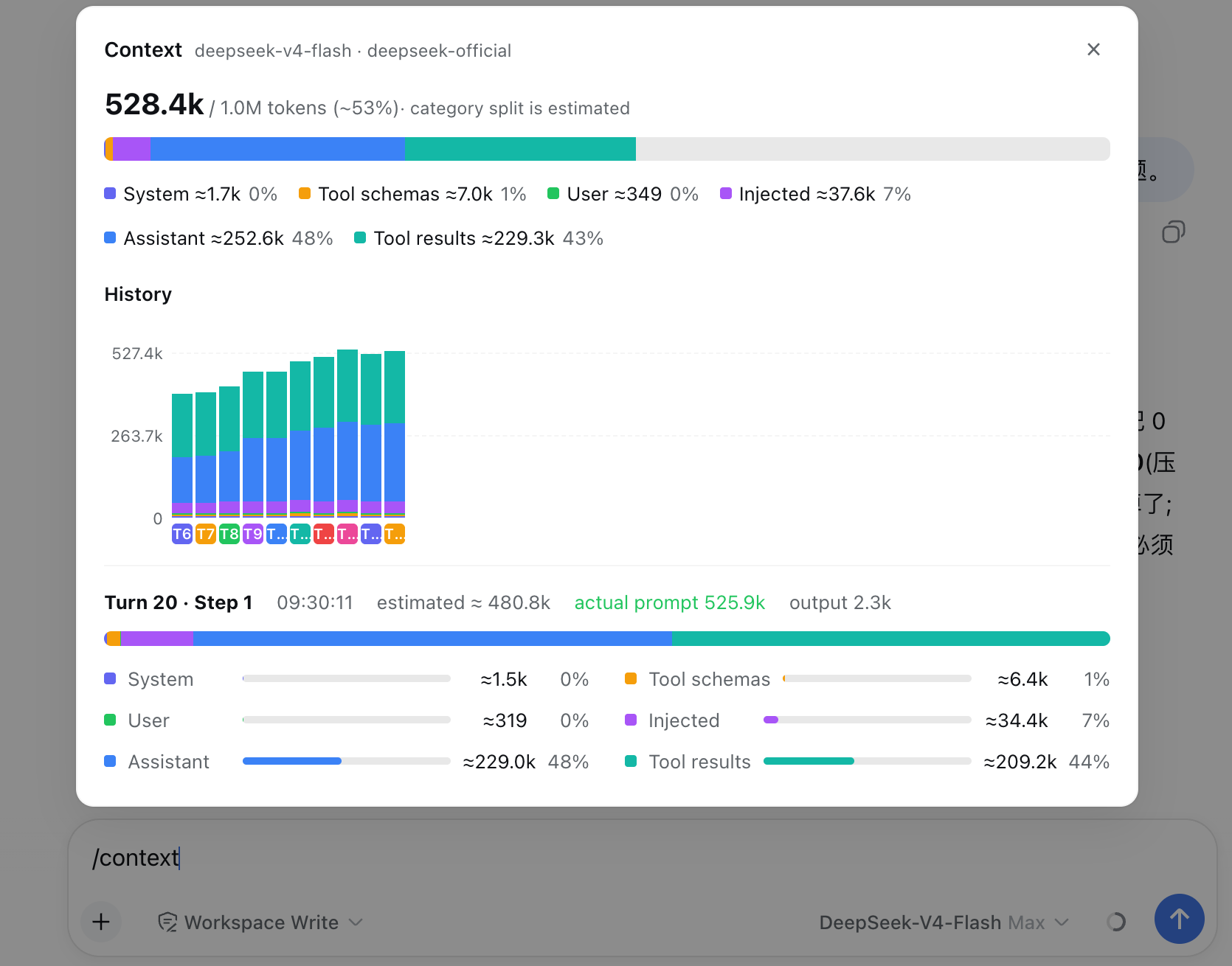
Type /context (or pick it from the / menu) and press Enter: a centered dialog shows the Current Composition card and the Context browser — the same composition bar, legend, and per-step browsing as the tab, so you can inspect what any request was assembled from without leaving the chat.
What you'll see
📊 Context stats — the session at a glance
Turns, steps, how many injections, compactions, and prunes have happened.
🧱 Current composition — what's in the window right now
A six-color stacked bar scaled against the model's full context window (the gray track is your remaining headroom): system prompt, tool schemas, your messages, injected context, assistant replies, and tool results — plus the top-5 most expensive tool schemas. When a conversation starts degrading, this is where you find out which part ate the budget.
📈 History — watch the window grow (and get compacted)
One stacked bar per model request, finer than per-message. Toggle between Turn and Step granularity, scroll sideways through the session, hover any bar for a quick tooltip, and click to pin the full breakdown — including provider-reported actual prompt/output tokens next to the estimate. Hovering a bar also drives the Context browser beside it — the browser previews that step's assembled context in real time as you scrub across the history. ✂ marks where compaction or pruning happened — watch the bars drop:
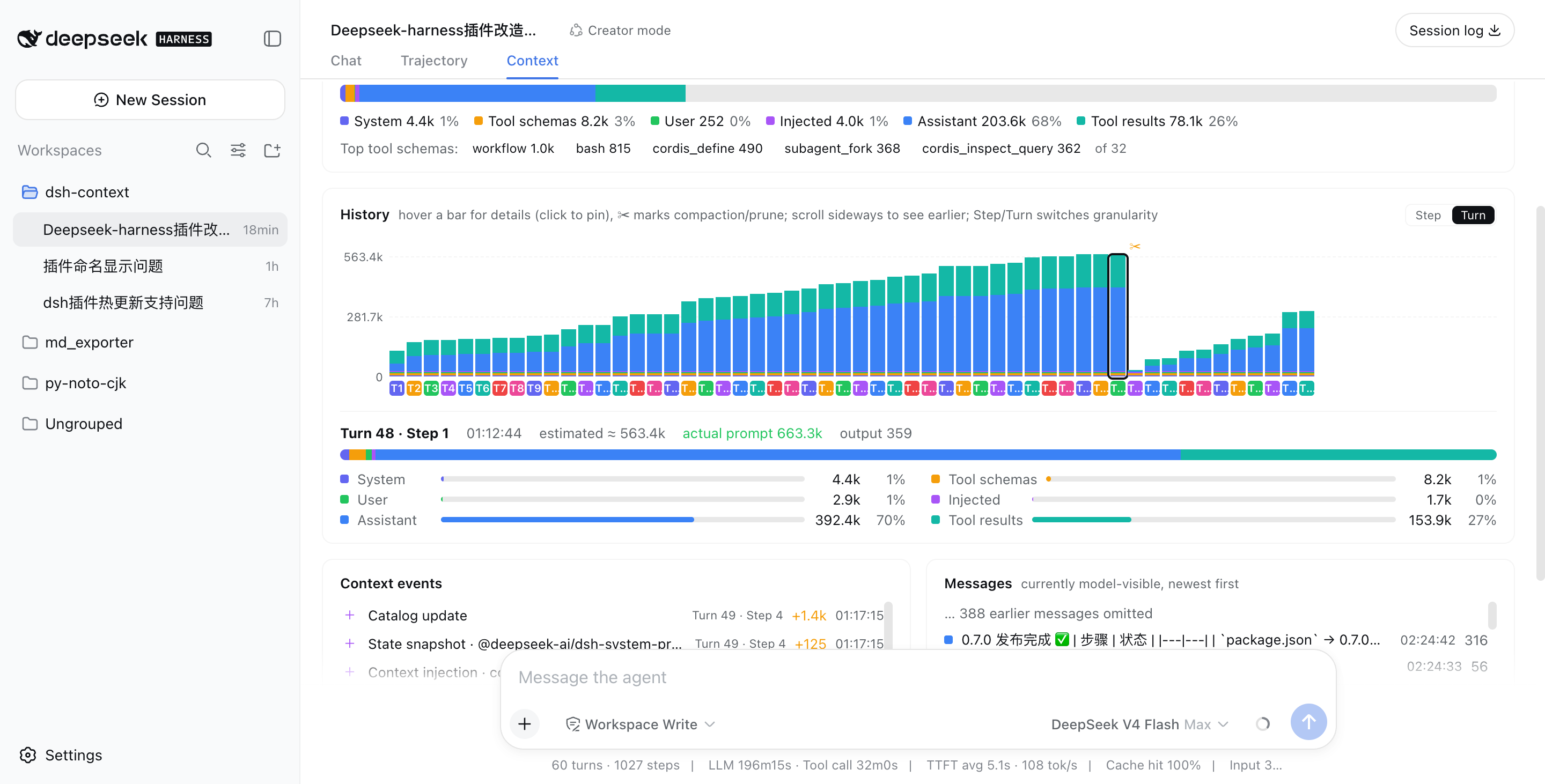
Above: a real session that grew to ~563k tokens across 48 turns, then compaction (✂) recycled −535.5k in one step, and the conversation continued from a fresh, small window.
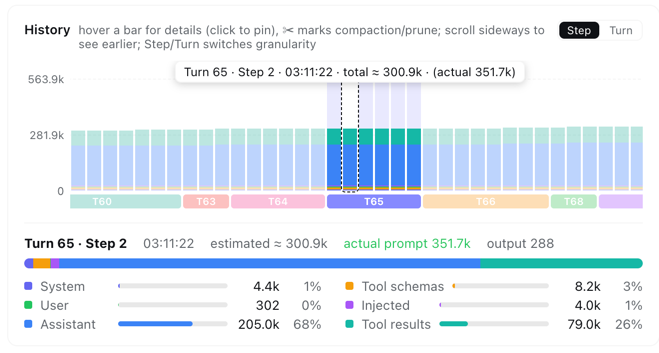
In Step granularity, hovering any bar shows that single step's context info instantly — its turn/step, timestamp, and estimated vs. provider-reported token counts:
⚡ Context events — when and why the window changed
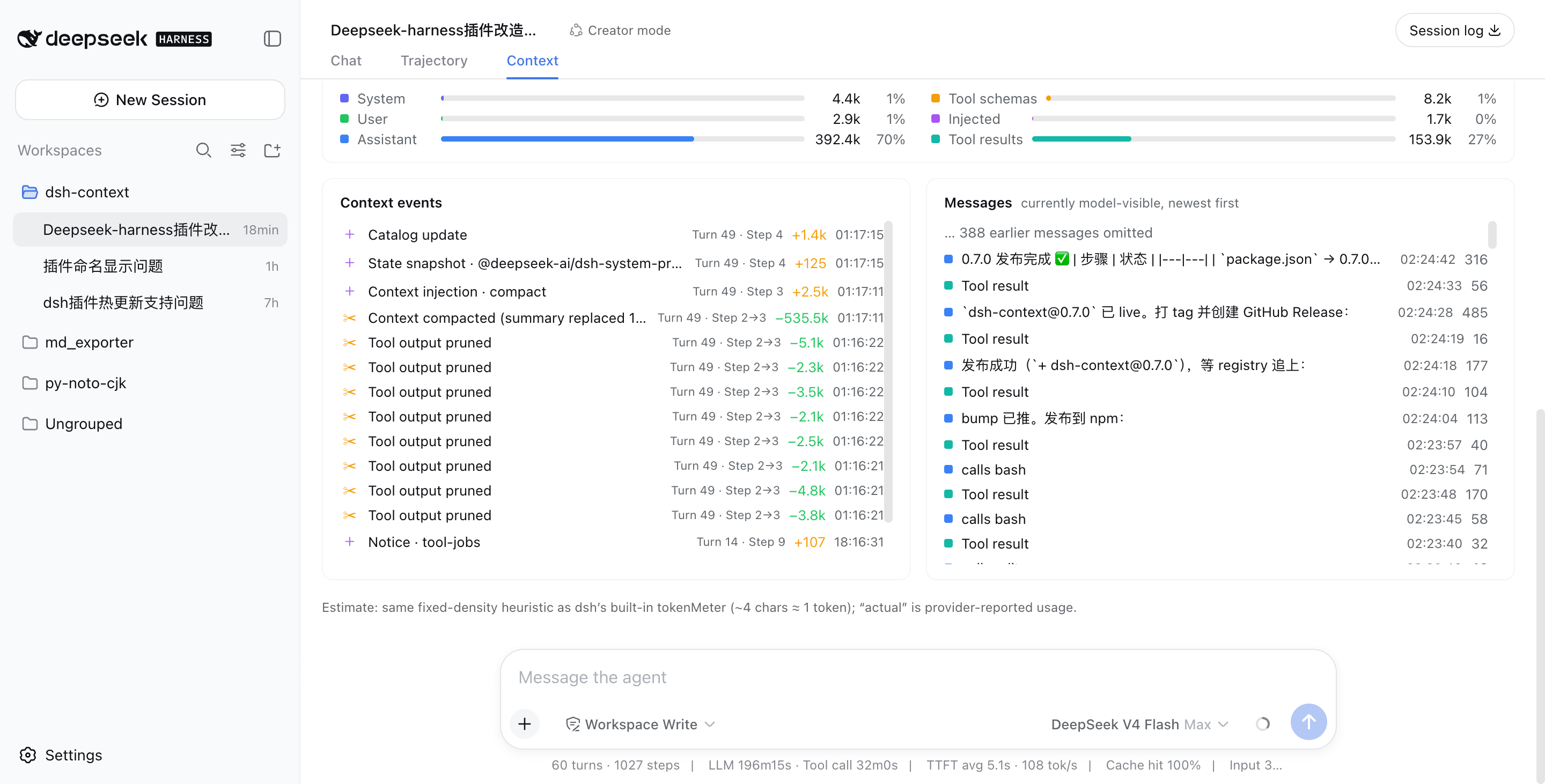
Every compaction, tool-output prune, skill or plugin context injection, and model switch — each with its token delta, turn/step attribution, and timestamp. Filter by category (Inject / Compact / Prune / Switch) to see exactly when each kind of event happened and its impact — e.g. when a skill was injected, when instructions were added, or how much a compaction reclaimed:
💬 Messages — the currently model-visible surface
The exact message list the model sees right now, newest first, with a per-message token cost.
🧭 Context browser — open the box of any request
Pick Live (next request) or any retained step from the picker, and browse what that request was actually assembled from:
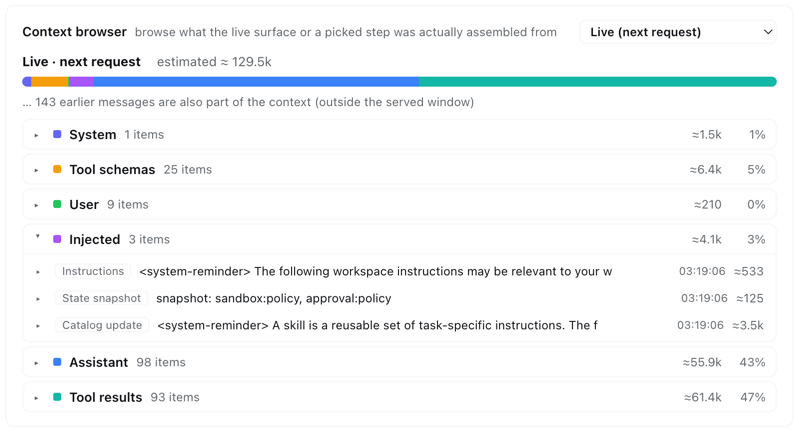
Six collapsible category sections (system prompt, tool schemas, user messages, injected context, assistant replies, tool results) expand into one row per element — each with its token price — and every element expands again into its actual content: the full system prompt, each tool's description and JSON schema, message text, reasoning, tool-call arguments, and tool outputs.
- Linked with the history chart — hover any bar in the History card and the browser previews that step instantly; leave the chart and it returns to your own pick. Keep a category open while scrubbing to compare one category across steps.
- Honest about coverage — steps before a compaction are reconstructed from the removed-message archive, and the card says so when a step's makeup is only approximate. Elements older than the loaded chat window page older history in automatically when you expand them, and live injections (AGENTS.md, session-start context, …) are always listed — never a token sum without its items.
🖼 Multimodal — image attachments in full view (DeepSeek Harness 0.1.1+)
Fully adapted to DeepSeek Harness 0.1.1's multimodal pipeline and the vision capability of DeepSeek-V4-Flash-Vision-Exp. A user message carrying images expands into a card layout — prose in the text card (with the usual raw/Markdown toggle), each image attachment as a thumbnail card with its name, normalized dimensions (plus the pre-normalization size when 0.1.1's image pipeline downscaled it) and stored size, and anything unrecognized as raw content:
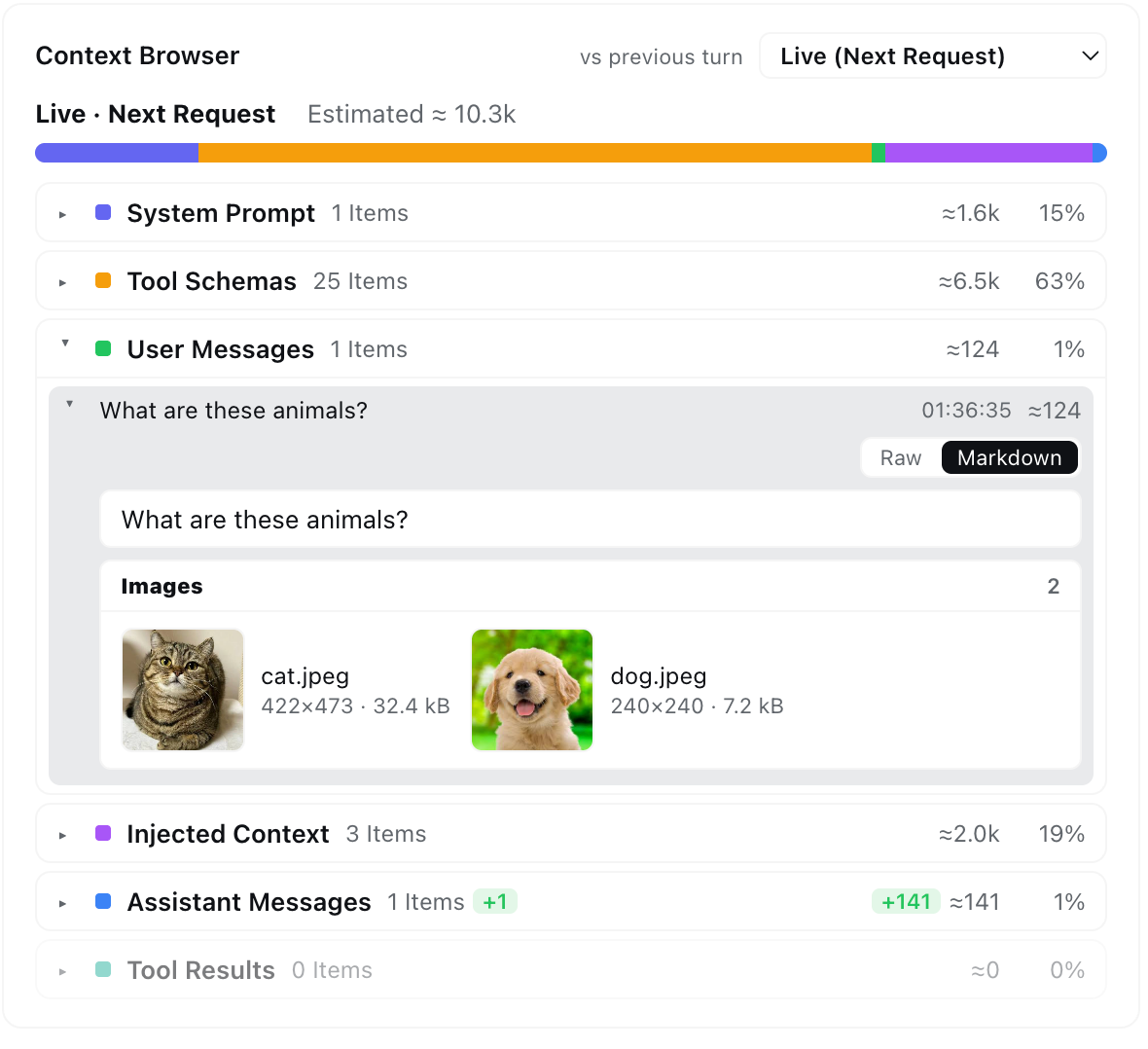
Images load through the harness's own session-authorized loader — the same one the chat history uses — and degrade to metadata-only cards when it is unavailable. Image blocks in assistant messages and tool results (e.g. read_image output) now render too, instead of being silently dropped.
Like it?
If dsh-context helped you understand what your agent is carrying around, a ⭐ on GitHub is much appreciated — and issues/PRs are welcome!