EdgeEver Showcase & Workflows
A practical guide to core workflows, key features, and real-world usage scenarios with EdgeEver.
Table of Contents
Core Workspace & Focused Writing
Omnichannel Capture & Ingestion
AI-Powered Structuring & Multi-Dimensional Data
Visual Styling & Omnichannel Publishing
Open Ecosystem & Extensibility
Core Workspace & Focused Writing
1. Classic Three-Pane Workspace & Distraction-Free Editing
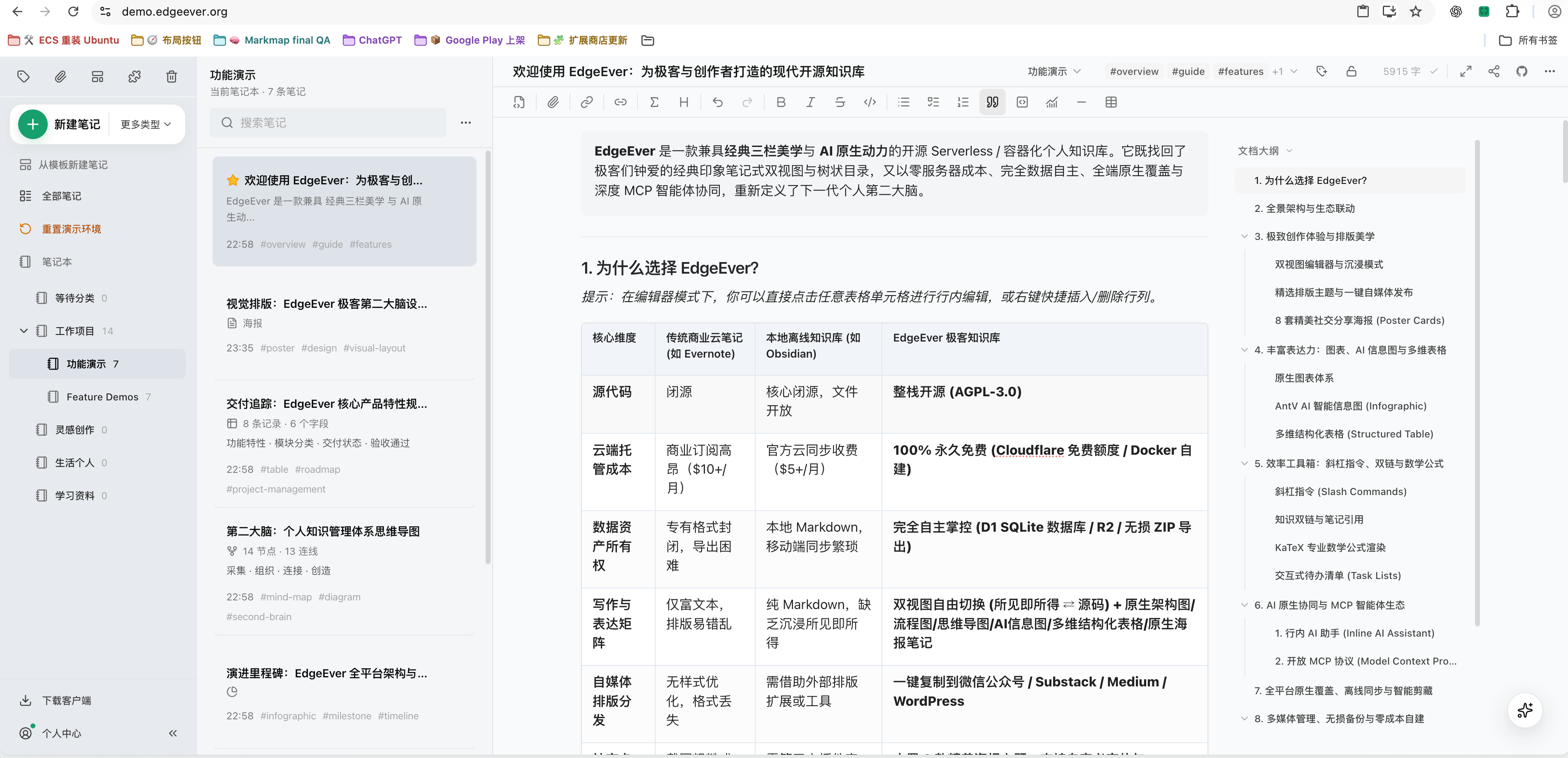
EdgeEver features a classic three-pane structure (Notebook Tree · Note Stream · Editor Canvas):
- Focus Mode: Resizable and collapsible sidebars allow instant toggling into full-screen writing mode.
- Hybrid Editing: The main editor supports both WYSIWYG rich text and Markdown syntax.
| Three-Pane Workspace Layout |
 |
Omnichannel Capture & Ingestion
2. WeChat Chat History Archiving
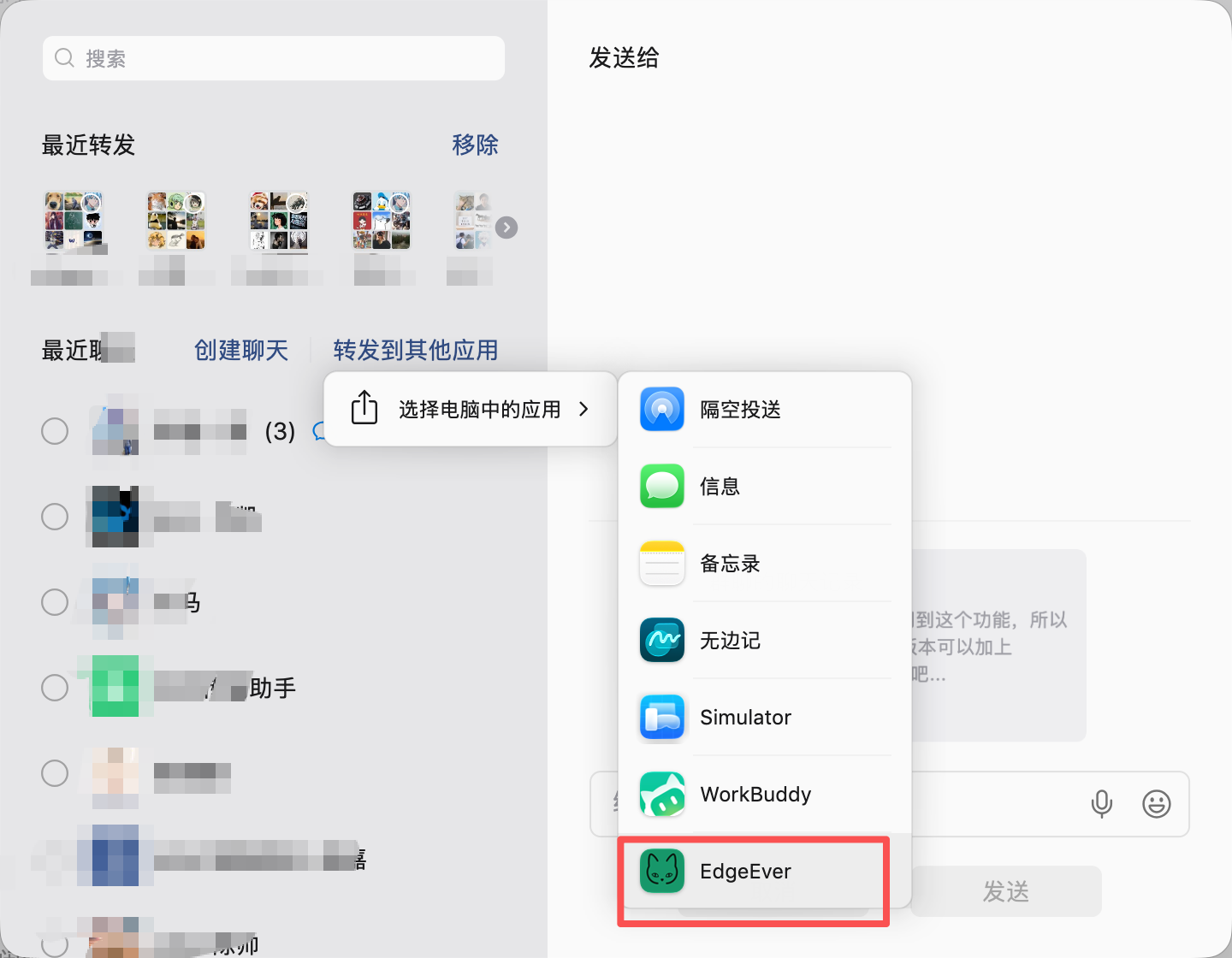
Select messages in WeChat, tap "Combine and Forward" (合并转发), and choose EdgeEver under "Forward to Other Apps" to convert conversations into structured notes.
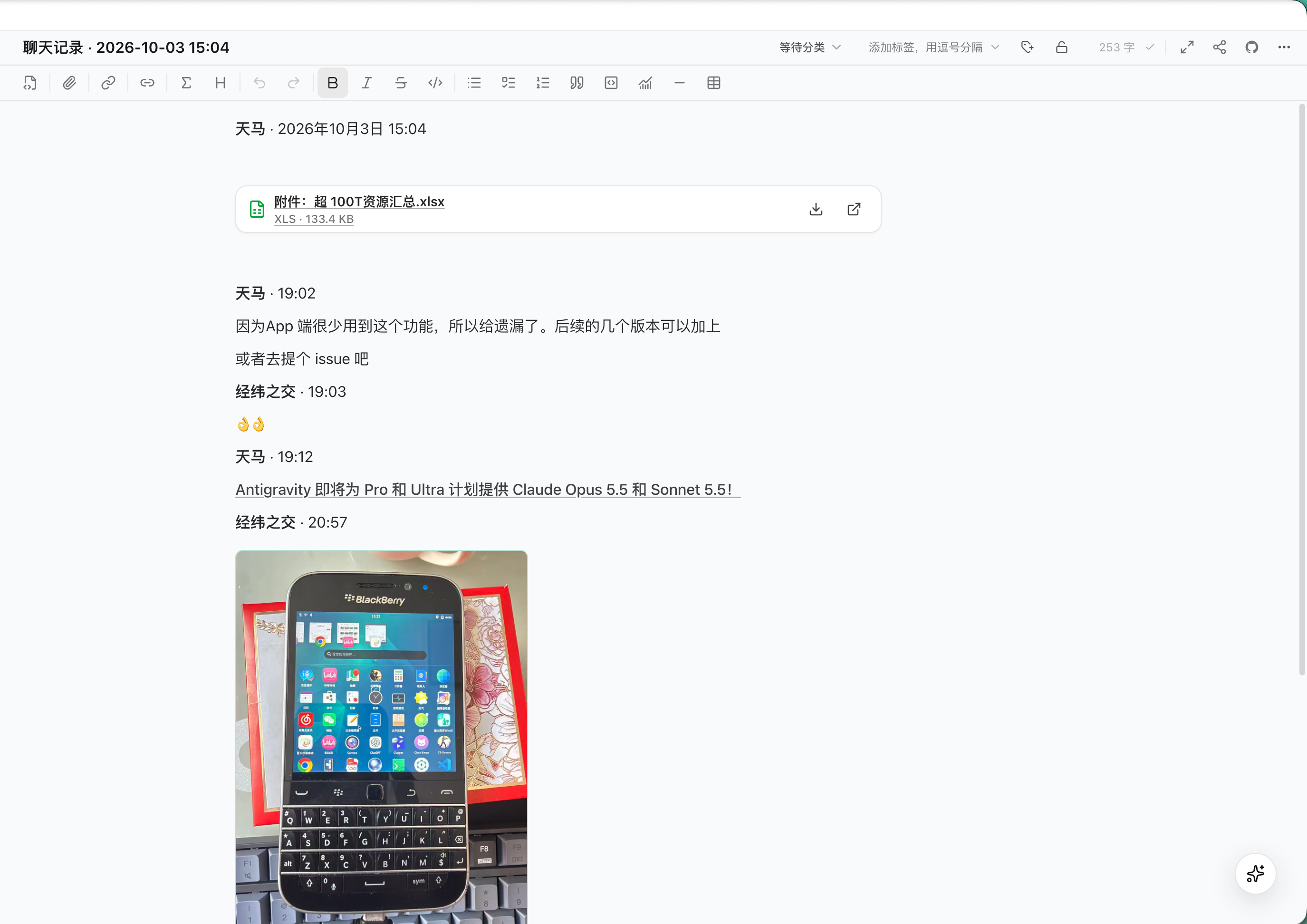
- Format Parsing: Parses senders, timestamps, emojis, and links into clean layouts.
- Media Preservation: Images are embedded inline; documents and media files (
.xlsx, .pdf, .mp4) are saved as attachments with full-text search support.
| 1. Forward to EdgeEver |
2. Structured Note Preview |
 |
 |
3. WeChat Article Clipping on Mobile
When reading WeChat Official Account articles on mobile, select "Open in EdgeEver" (用 EdgeEver 打开) from the top-right menu.
- Automatically extracts the title, body structure, and embedded images into clean Markdown.
| 1. Select "Open in EdgeEver" |
2. Extracting Content |
3. Generated Markdown Note |
 |
 |
 |
4. Mobile Image Sharing to Notes
Select EdgeEver in the mobile system share sheet from any app to upload images and create notes titled "Shared Image" in the background.
| 1. Share Image |
2. Choose EdgeEver |
3. Generated Image Note |
 |
 |
 |
5. Xiaohongshu (RED) Note Clipping
Right-click any note page and select "Save Note to EdgeEver" using the EdgeEver Web Clipper extension.
- Captures title, topic tags, body text, publish timestamp, and source URL.
- Automatically formats multi-image sets into multi-column gallery layouts.
| 1. Right-Click Clipper Menu |
 |
| 2. Multi-Column Gallery Note |
 |
Right-click any post and select "Save Tweet to EdgeEver" with the EdgeEver Web Clipper extension.
- Extracts author info, tweet content, external links, quote tweets, and multi-image attachments.
- Formats content into a multi-column gallery layout.
| 1. Right-Click Save Tweet |
 |
| 2. Note with Quotes & Gallery |
 |
7. Zhihu Answer & Column Article Clipping
Right-click any specific answer or article and select "Save Answer/Article to EdgeEver".
- Parses question title, author, body, timestamp, and permalink into a structured Q&A note.
| 1. Right-Click Save Answer/Article |
 |
| 2. Structured Q&A Note Preview |
 |
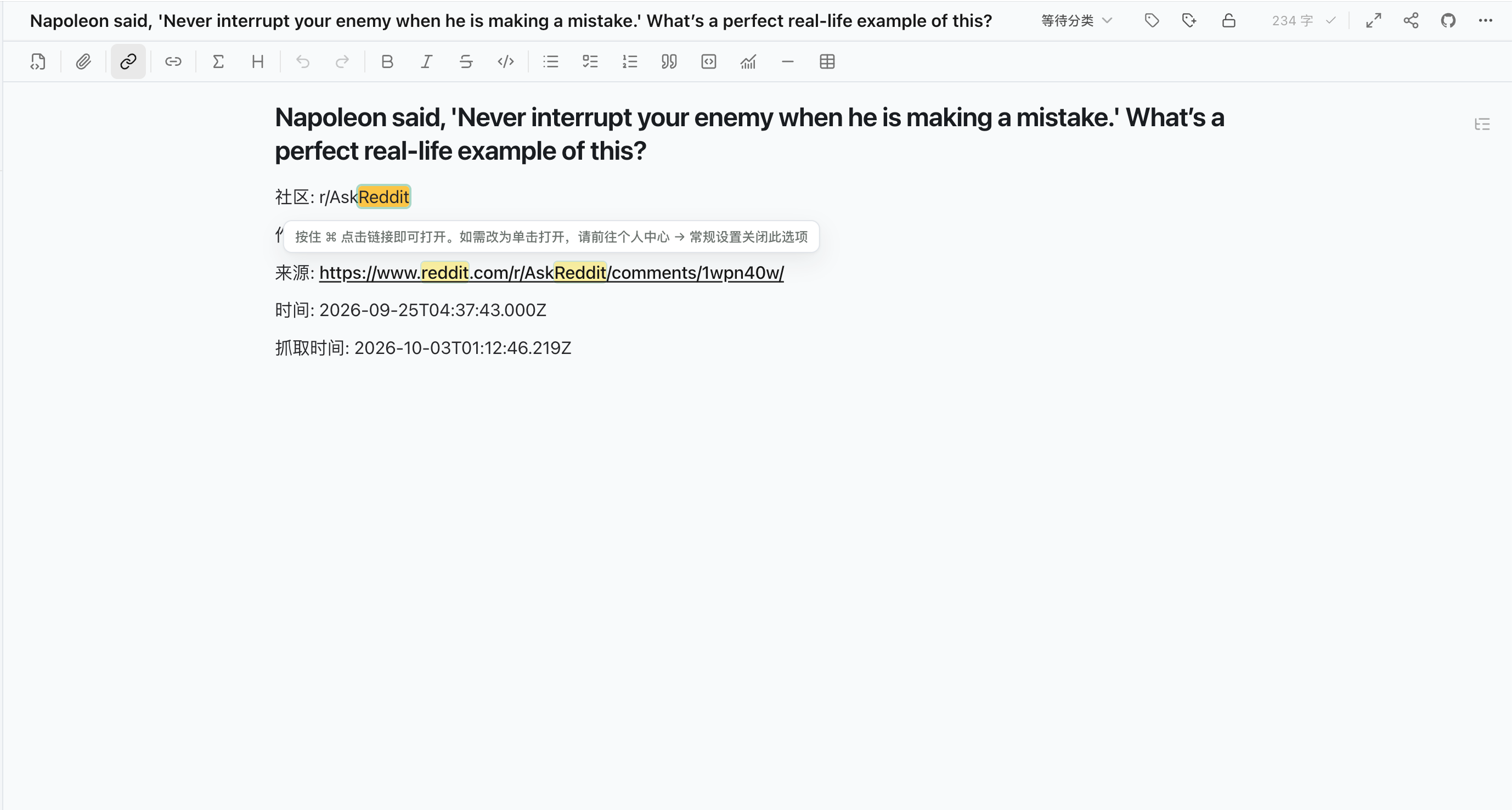
8. Reddit Discussion Post Clipping
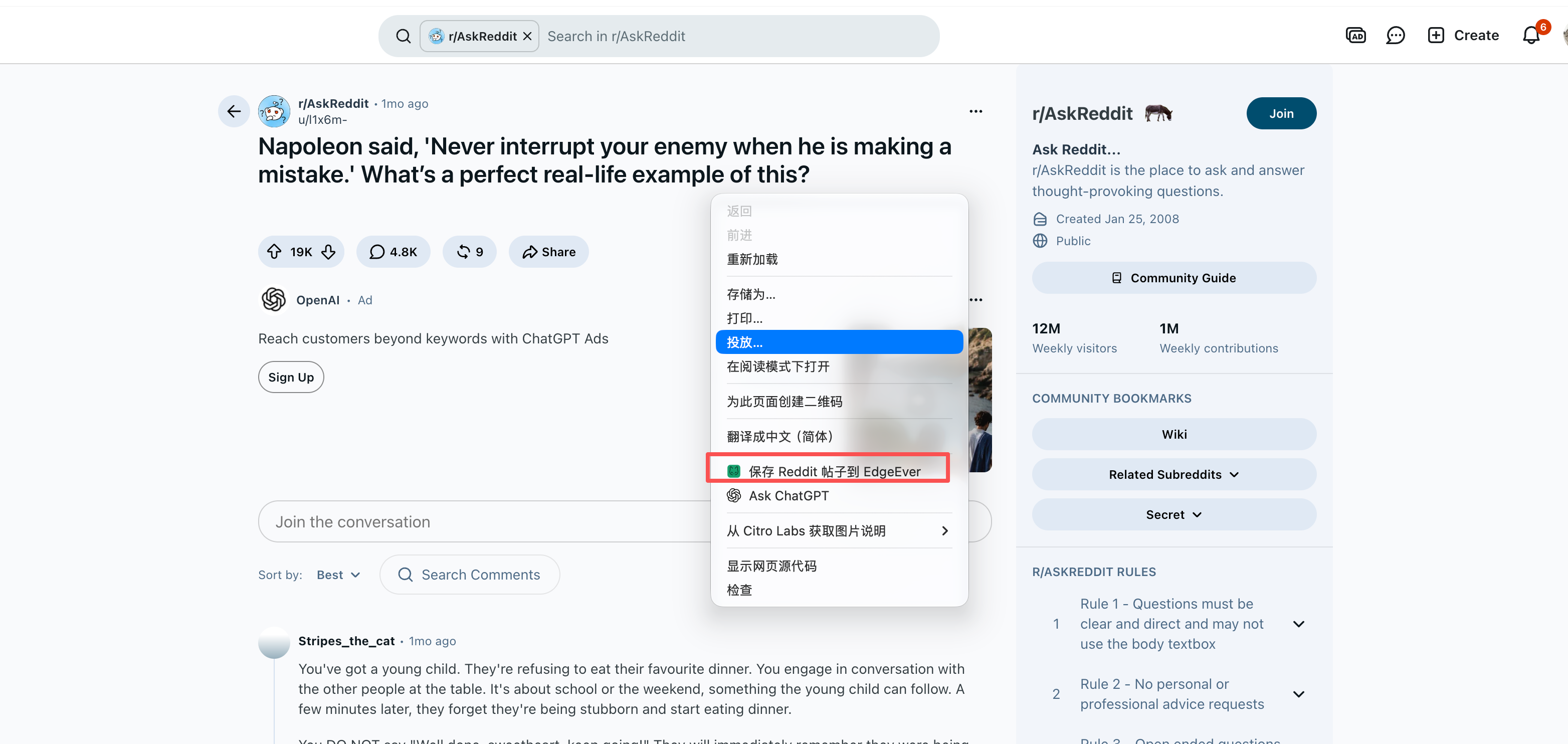
Right-click on the post title or body and select "Save Selection to EdgeEver".
- Captures thread title, subreddit (e.g.
r/AskReddit), author handle, timestamp, and permalink to preserve community metadata.
| 1. Right-Click Save Post |
 |
| 2. Note with Community Metadata |
 |
9. Instagram Post & Carousel Clipping
Right-click any Instagram post or carousel and select "Save Post to EdgeEver" using the EdgeEver Web Clipper extension.
- Extracts author handle, full caption text, publish timestamp, topic tags, and source URL.
- Fully extracts multi-image carousel sets and video covers, automatically formatted into a multi-column gallery layout.
| 1. Right-Click Save Instagram Post |
 |
| 2. Note with Metadata & Multi-Image Gallery |
 |
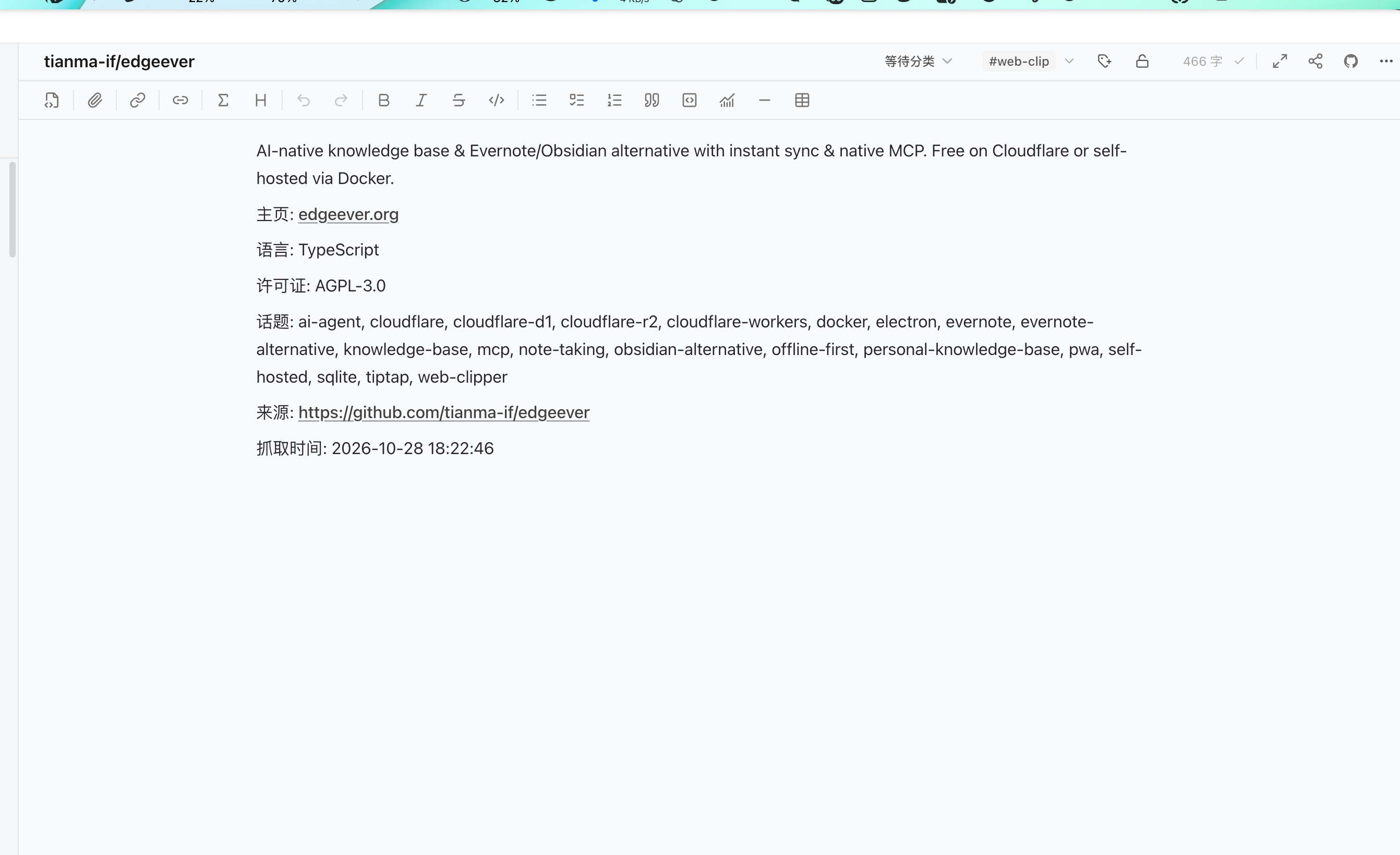
10. GitHub Repository Metadata Clipping
Right-click anywhere on the GitHub repository page and select "Save Repository Info to EdgeEver" using EdgeEver Web Clipper.
- Extracts repository name (
Owner/Repo), description, homepage URL, primary language, license, and topic tags into a structured technical card.
| 1. Right-Click Save Repository Info |
 |
| 2. Structured Repository Card Note |
 |
AI-Powered Structuring & Multi-Dimensional Data
11. AI Conversational Generation of Mind Maps, Flowcharts & Architecture Diagrams
Prompt the AI Co-pilot (or connected local Agent) with natural language (e.g., "Generate a mind map / flowchart / architecture diagram about LLMs") to create editable diagrams directly in notes.
- Supports drag-and-drop node editing, auto-layout, conditional branches, and system topologies.
| 1. Interactive Mind Map |
 |
| 2. Standard Flowchart |
 |
| 3. System Architecture Diagram |
 |
12. AI Generation of Structured Infographics (Timelines, Matrices & Quadrants)
Use built-in infographic templates (timelines, comparison matrices, quadrants, and hierarchy charts) by prompting the AI Co-pilot with your topic.
- Organizes key facts and milestones into structured visual infographic notes.
- Refine through conversational follow-ups or export directly to vector graphics.
| 1. Technology Roadmap Infographic |
 |
| 2. Milestone Timeline Infographic |
 |
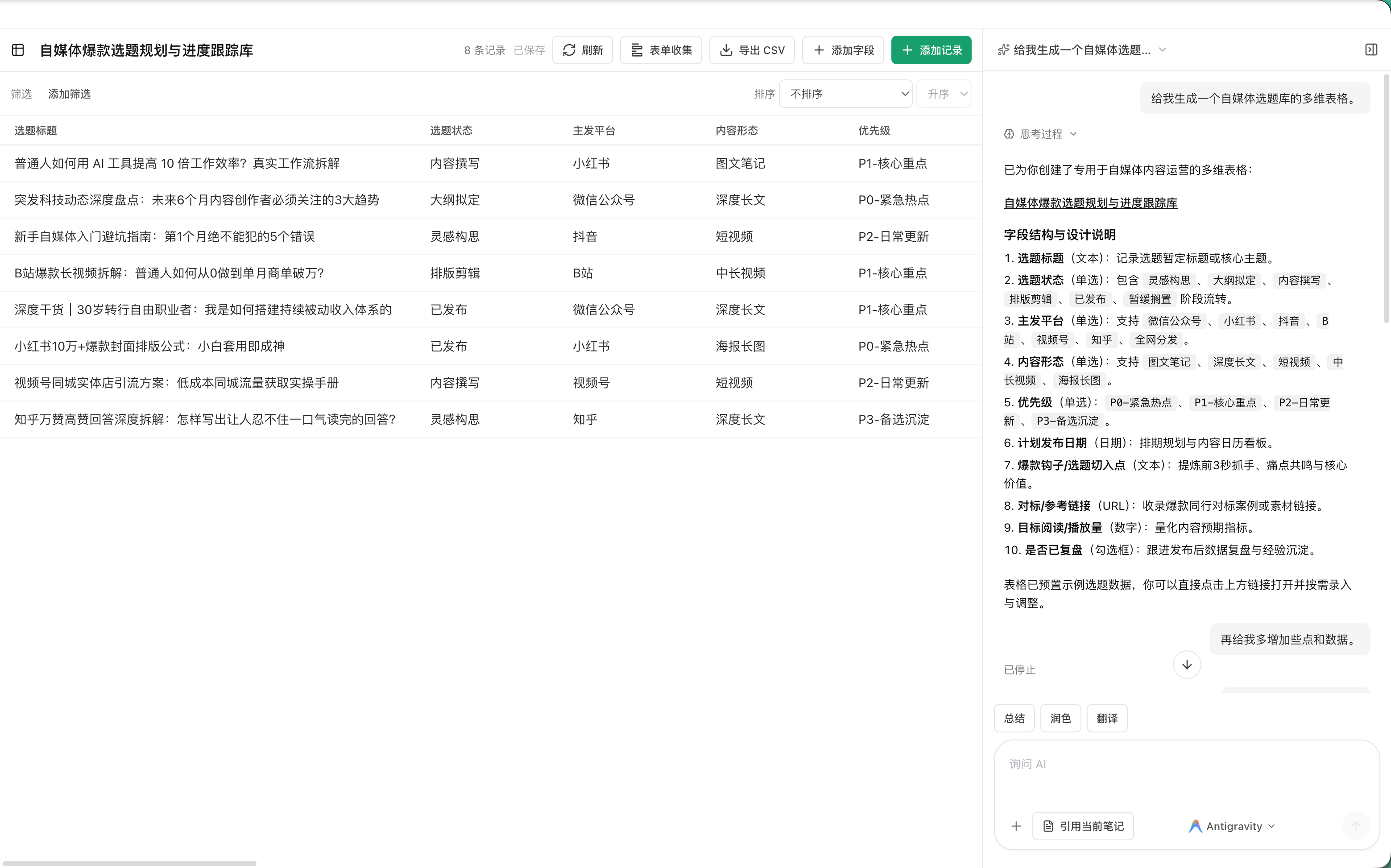
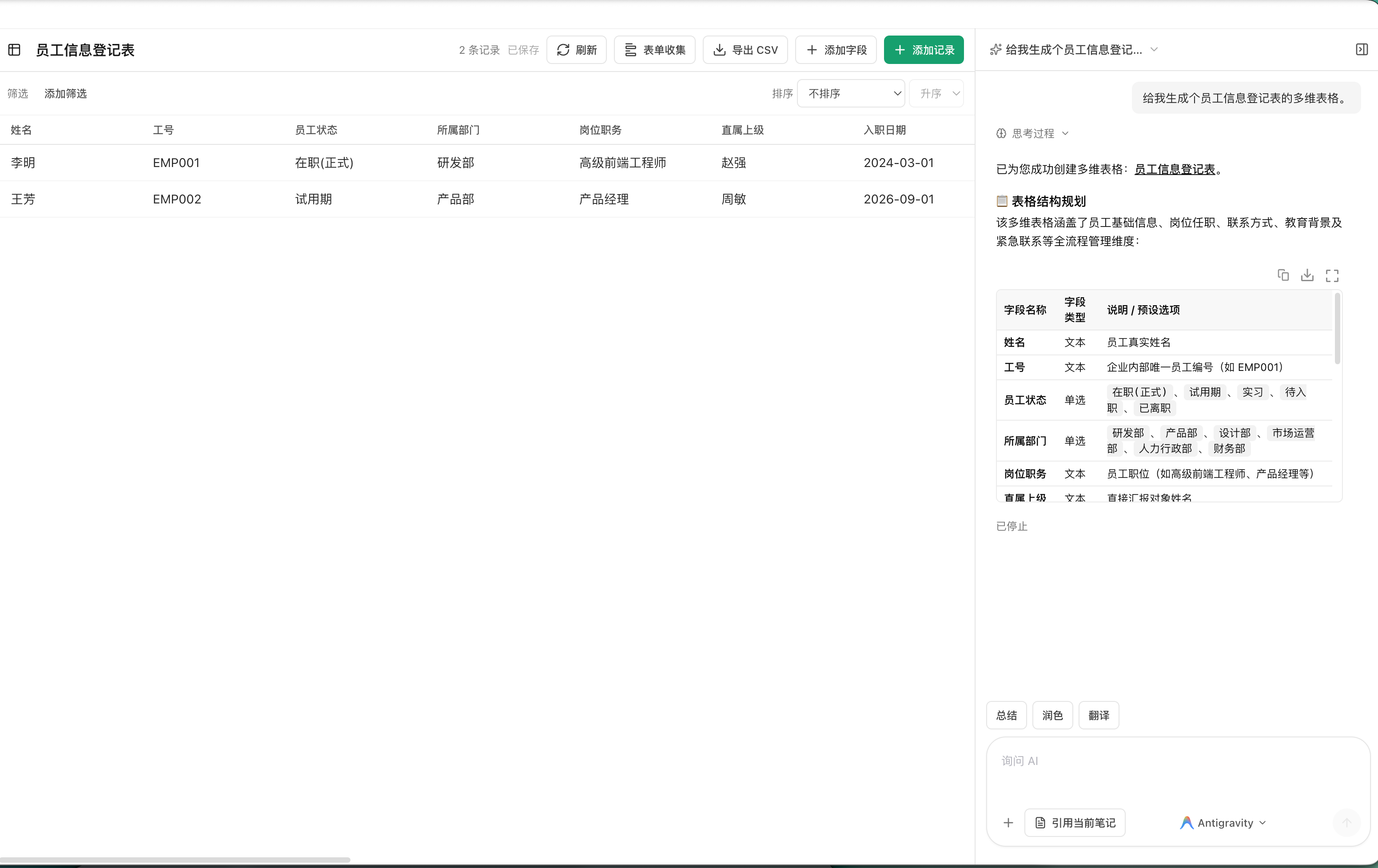
13. AI Conversational Database Table Generation
Send a prompt to the AI Co-pilot (e.g., "Create a database table for social media content planning" or "Generate an employee onboarding tracker") to construct complete data tables.
- Infers column types (tags, text, dates, links) with initial sample rows.
- Supports views, filtering, sorting, and CSV export.
| 1. Content Planning Table |
 |
| 2. Employee Directory Table |
 |
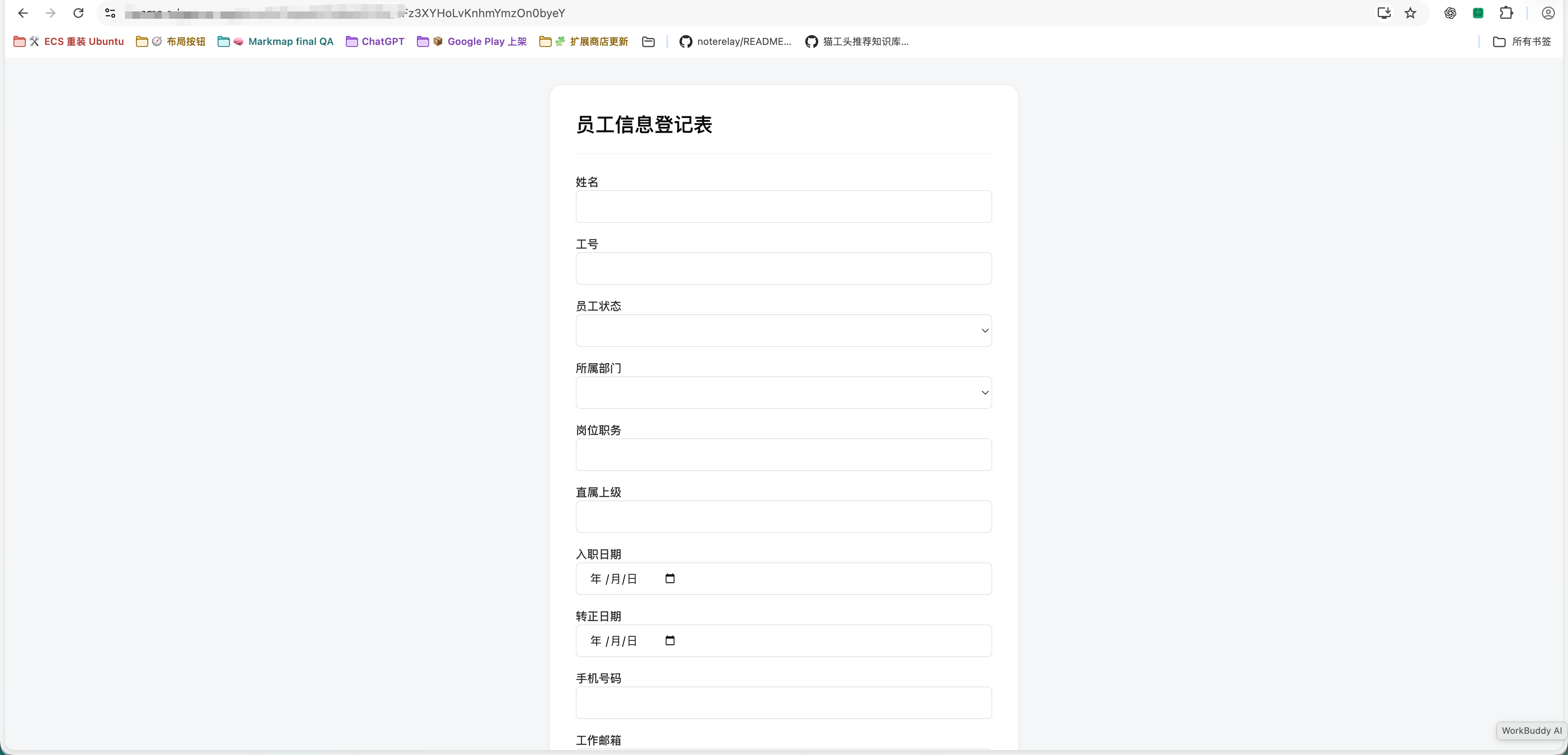
14. Public Online Form Collection from Database Tables
Click "Form Collection" at the top of any database table to generate a public online data entry form.
- External respondents can submit information via browser without logging in.
- Submissions sync directly to the database table in real time.
| 1. Open "Form Collection" |
2. Public Form Page |
 |
 |
15. Connecting Local Agents via ACP for Note Interaction
EdgeEver natively supports ACP (Agent Client Protocol), allowing desktop clients to connect with local AI agent environments (such as Codex, Claude Code, DeepSeek Harness, Antigravity, etc.).
- Local Authorization: Grants local agents secure read/write access to user notes.
- In-Editor Chat: Converse directly with local agents from the note sidebar for code reasoning, document synthesis, and knowledge retrieval.
| 1. Connect Local Agents via ACP in Settings |
2. Note Sidebar Interaction |
 |
 |
Visual Styling & Omnichannel Publishing
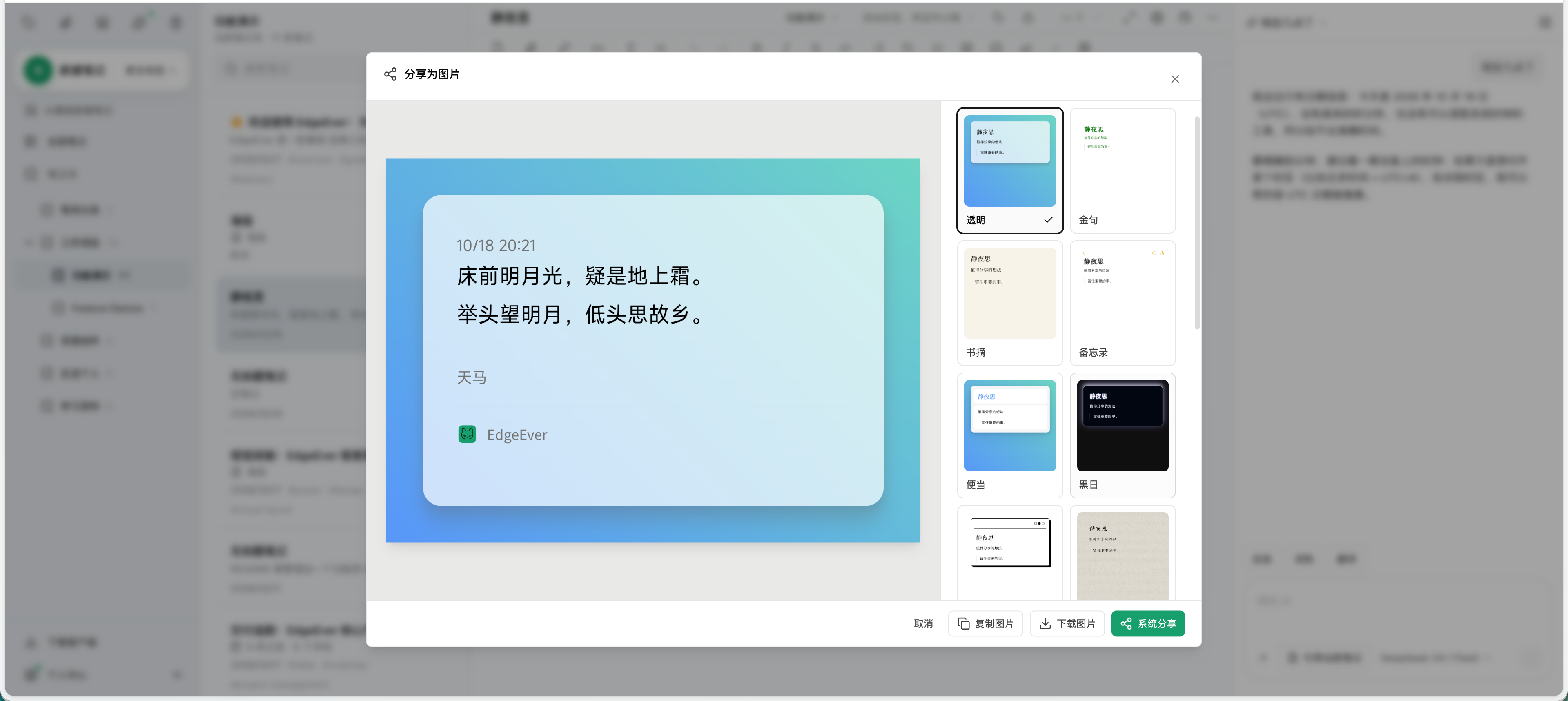
16. Note Export to Long Image & Code Cards
Use the "Share as Image" feature to render notes into high-resolution long images or cards.
- Multiple Card Themes: Choose from 8 curated card themes (Transparent, Quote, Book Excerpt, Memo, Dark, and more) with customizable typography and layout. Export high-res long images or copy directly to the clipboard.
- Technical Code Cards: A dedicated "Code" theme features macOS-style window controls, line numbers, and monospace syntax highlighting.
| 1. Card Theme Previews (e.g. Transparent) |
2. Font & Layout Customization |
 |
 |
17. Social Media Poster & Cover Design from Notes
Click "Create Poster" in any note's action menu (or via "New → Poster") to load key takeaways and titles into the Poster Design Studio.
- Offers 40+ design templates supporting Xiaohongshu 3:4, Moments 1:1, and landscape aspect ratios.
- Customize layout, colors, and design elements on the canvas, then export high-resolution PNGs.
| Poster Design Studio & Templates |
 |
18. Copying Notes to WeChat Official Account & Blogs
Select "Copy to Official Account / Blog" (复制到公众号 / 博客) from the note menu to convert notes into rich text with inline CSS.
- Paste directly into the WeChat Official Account editor while preserving tables, callouts, code blocks, lists, and typography styles.
| 1. Copy to Official Account / Blog |
 |
| 2. WeChat Official Account Editor Layout |
 |
Open Ecosystem & Extensibility
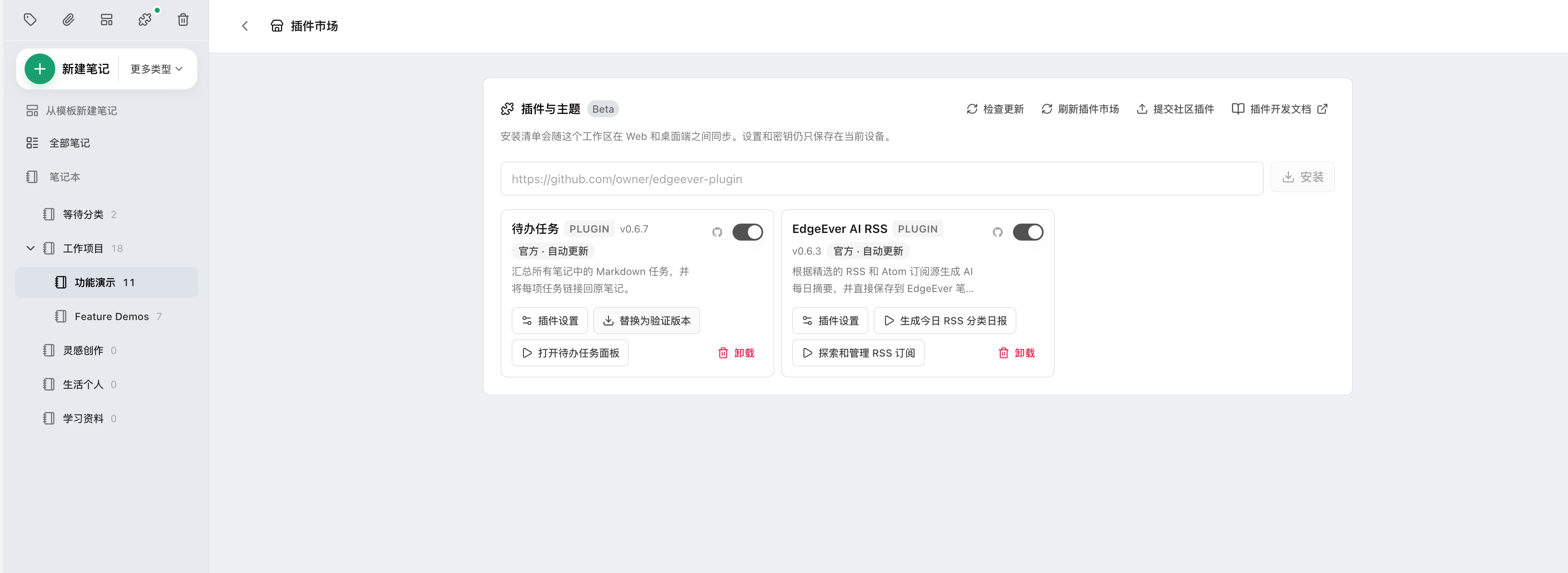
19. Open Plugin API & Custom Plugin Development
EdgeEver features an extension manager supporting one-click installation via GitHub repository URLs or Manifest links, with cross-device workspace synchronization between Web and Desktop.
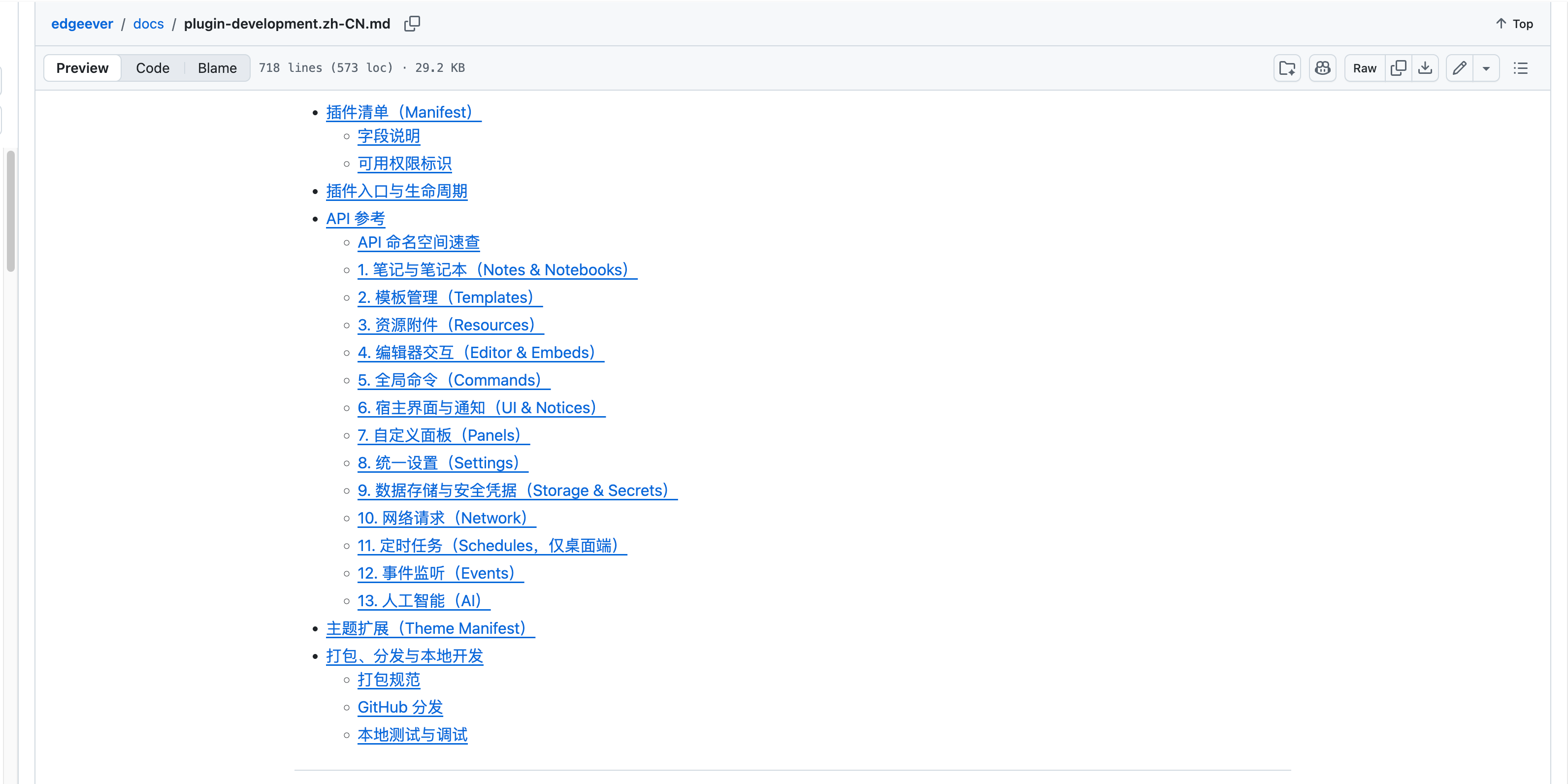
- Core API Capabilities: Bidirectional note read/write, custom DOM panels/embed blocks, unified settings, isolated storage, and direct invocation of workspace-configured AI models.
- Official Open-Source Reference Implementations:
- Task Aggregation (EdgeEver Tasks): Aggregates Markdown todo items across all notes with status filtering and two-way navigation.
- AI RSS Feed Assistant (EdgeEver AI RSS): Automatically captures RSS/Atom feeds and uses AI to generate structured daily digest notes.
- For complete API documentation and development workflows, refer to the EdgeEver Plugin Development Guide.
| 1. Extension & Plugin Management Center |
 |
| 2. Plugin API Namespaces & Documentation |
 |



